Canvas and workbench
The canvas is the visual editor of a DAG. Each task is a node, each dependency is an edge, task groups are frames that contain tasks, and sticky notes document the graph without becoming tasks. Everything drawn here is stored in the AutoAir DAG spec and turned into a Python DAG file by the code generator.
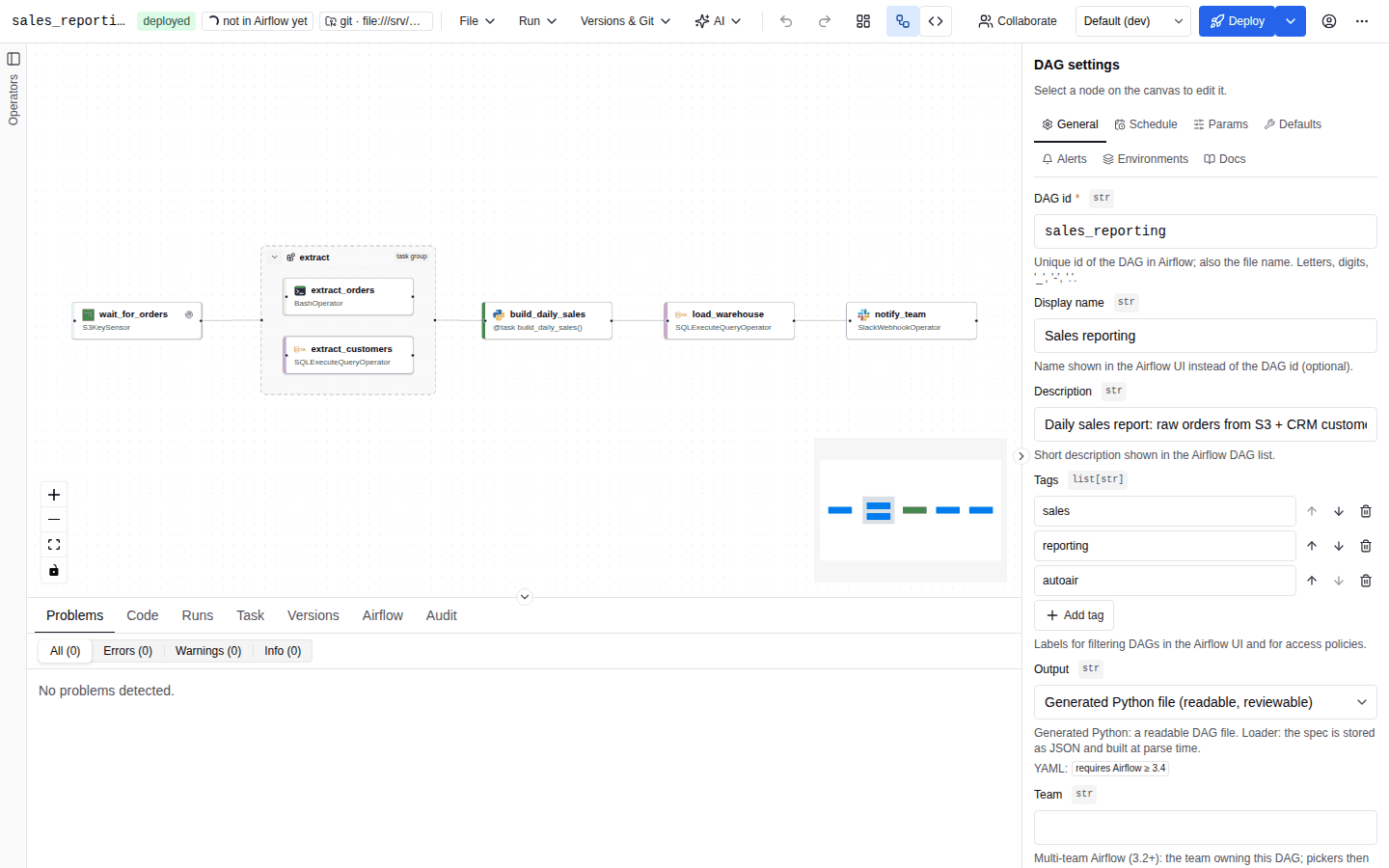
Palette
The palette on the left lists everything that can be inserted.
| Section | Contents |
|---|---|
| Built-in | Python task (@task) and the other @task.<decorator> variants the server's Airflow provides, Task group, Note, and nodes contributed by installed extensions. |
| Operator templates | Pre-configured tasks saved by your team. See Operator templates. |
| Templates | Template fragments: reusable groups of tasks. See Templates and fragments. |
| One section per provider | Every operator, sensor and transfer the operator catalog discovered, grouped by provider package. See Operators and parameters. |
Tabs above the list filter it: All, Operators, Sensors, Transfers, Built-in, Favorites and Recent. The search box matches every word you type against the label, summary, provider, class path and keywords, and ranks label matches first. While you search, collapsed provider sections expand.
To add an item, do one of the following:
- Drag it onto the canvas. Dropping it inside a task group puts the task in that group.
- Double-click it.
- Move to it with the arrow keys in the search box and press Enter.
Press Alt+S on the highlighted item, or click its star, to add it to Favorites. The ten most recently inserted items appear under Recent. Favorites and recents are stored in the browser.
Items the builder cannot configure are listed but disabled, with the reason in their tooltip, for example Not supported yet: needs Python callable parameter(s): …. Operators that take Python objects such as python_callable are insertable; they are configured with a Python reference, and the hint names the equivalent @task node. See Python references.
When the canvas is empty it shows Start your DAG with shortcuts to Search operators…, Start from a template…, Generate with AI… and Write it as code.
Nodes and dependencies
Task nodes
A task node shows its task id (or its canvas label), the operator class or decorator, and badges:
| Badge | Meaning |
|---|---|
disabled | The task stays on the canvas but is left out of the generated DAG. Its upstream and downstream tasks are connected directly. |
setup / teardown | The task is a setup or teardown task. Edges touching it are drawn dashed. |
mapped | Dynamic task mapping is configured. |
→ asset | The task produces assets (outlets). |
result | The task is the DAG result (@result). |
stub · <queue> | A @task.stub task routed to a language SDK queue. |
lineage / no lineage | OpenLineage is forced on or off for this task. |
N errors, N warnings | Validation problems on this task. |
Markers also flag Sensor, Deferrable, Human-in-the-loop, Branching and Short-circuit tasks.
Selecting a single task shows a toolbar above it: Duplicate, Disable task / Enable task, Setup task, Teardown task, Test this task, Operator documentation (operators only) and Delete. Test this task is disabled when test runs are not available (features.test_runs).
The Label (canvas only) field in the inspector changes what the canvas shows without changing the task id Airflow sees. Icons can be changed per node or for all nodes of an operator class from Icon (canvas only).
Connecting tasks
Drag from a task's output handle to another task's input handle. The canvas refuses a connection and keeps the graph unchanged when:
- a node would depend on itself;
- the two nodes are already connected;
- a task group would be connected with one of its own members;
- the connection would create a cycle. Edges to or from a task group count as edges to every task in the group, as in Airflow.
Notes cannot be connected.
If you drop a connection on empty canvas, the insert popover opens at that point; the node you pick is created there and connected to the handle you dragged from.
Dependency labels
Double-click an edge, or right-click it and choose Edit label, to give it a label. Press Enter to save or Escape to cancel. Labels are generated as airflow.sdk.Label, for example to name a branch condition:
choose >> Label("weekday") >> load_weekday
Selecting an edge shows the Dependency inspector with the same Label field.
Insert popover
The insert popover is a compact searchable list for adding a node in context. It opens in three ways:
| Trigger | Result |
|---|---|
| Hover or select an edge and click its + button (Insert a node here) | The new node is inserted between the two tasks: source → new → target. |
| Drop a connection on empty canvas | The new node is created at the drop point and connected to the dragged handle. |
| Double-click empty canvas | The command palette opens in insert mode at that position. See Command palette. |
Between two tasks the popover offers operators and @task variants only: notes and template fragments cannot be inserted on an edge. Press Escape or click outside the popover to close it.
Task groups
A task group is a frame on the canvas that becomes an Airflow TaskGroup.
- Insert Task group from the palette, or select tasks and press Ctrl+G / ⌘G (Group selection) to wrap them in a new group.
- Drag a task into a group to add it; drag it out to remove it. Membership is decided by where the node's top centre lands when you release it.
- Select a group and press Ctrl+Shift+G / ⌘⇧G (Ungroup) to dissolve it. Its edges are rewired onto the member tasks that were its entry and exit points.
- Click the chevron in the group header, or press Alt+C / ⌥C, to collapse or expand the selected groups. A collapsed group is drawn as one box with its task count and, when a run is shown, an aggregated run state; edges into its members are drawn to the box. Collapsing is a view setting only: it is not saved in the DAG and does not mark it as changed.
- Resize an expanded, selected group from its edges (minimum 240 × 140 px).
- Deleting a group keeps its tasks: they move to the enclosing group, or to the top level.
The group inspector holds Group id, Label (canvas only), Tooltip, Prefix task ids with group id (on by default: tasks inside become <group>.<task>) and Loop this group (Task Loop). The resulting Airflow task id of every task is shown under its Task id field as Airflow task id: …. Task loops are described in TaskFlow and loops.
Sticky notes
Notes document the DAG on the canvas. They are not tasks and are never connected.
- Add one with Shift+N (Add note), with Add note here in the canvas context menu, or by inserting Note from the palette.
- Double-click a note to edit it. The text supports a small Markdown subset (headings, lists, bold, inline code). Press Ctrl+Enter / ⌘Enter or click outside to save; press Escape to discard the edit.
- Pick a colour and edit the text in the note inspector. Turn on Include in DAG docs to append the note's text to the DAG's
doc_md.
Context menu
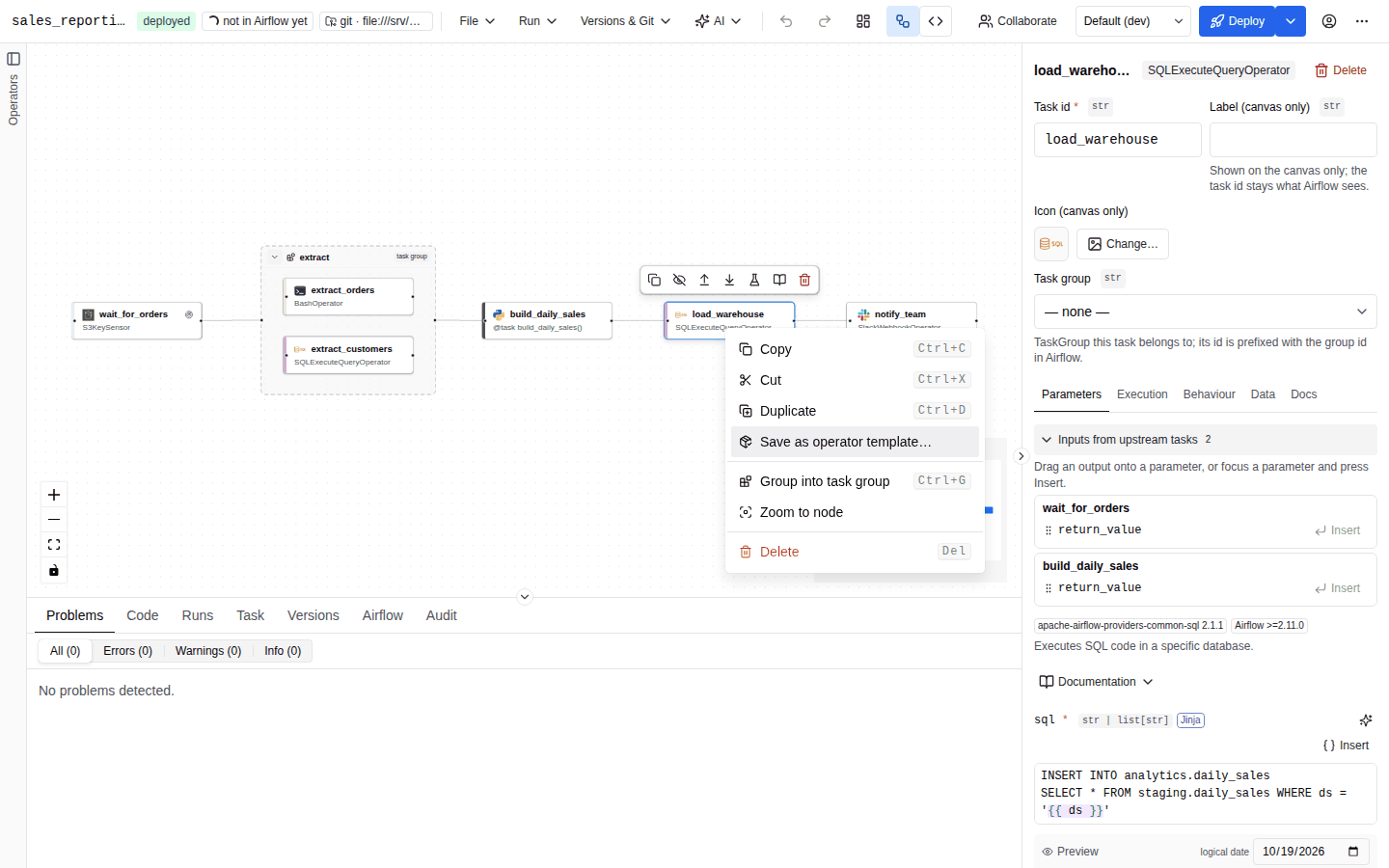
Right-click a node, an edge or empty canvas. The menu shows the keyboard shortcut next to each action that has one.
| Target | Items |
|---|---|
| Node | Copy, Cut, Duplicate, Save as operator template… (tasks only, with the template:write permission and templates enabled), Group into task group / Group N nodes, Ungroup and Collapse group / Expand group (task groups only), Zoom to node, Delete. |
| Edge | Edit label, Delete dependency. |
| Empty canvas | Paste here, Add note here, Select all, Group N nodes (with more than one node selected), Auto layout, Fit view. |
Right-clicking an unselected node selects it first. Paste here and Add note here use the position you right-clicked.
Selection, copy, paste and duplicate
- Click a node to select it. Shift+drag on empty canvas draws a selection box; Ctrl+click (⌘+click on macOS) adds a node to the selection. Ctrl+A / ⌘A selects every visible node and edge; Escape clears the selection.
- Arrow keys move the selected nodes by 1 px; Shift + arrow keys move them by 16 px. Holding the key repeats the move.
- Ctrl+C / ⌘C and Ctrl+X / ⌘X copy or cut the selection to the system clipboard as JSON. Copying a task group copies all its members. When the system clipboard cannot be read (browser permissions, insecure context), the menu and palette commands fall back to an in-memory clipboard.
- Ctrl+V / ⌘V pastes under the mouse pointer when it is over the canvas, otherwise next to the original position. Pasting inside a task group puts the pasted nodes in that group. You can also paste a whole AutoAir DAG spec JSON copied from elsewhere.
- Ctrl+D / ⌘D duplicates the selection 40 px down and right; duplicates of grouped tasks stay in the same group.
Pasted and duplicated nodes get new internal ids. Task ids that would collide get a numeric suffix (extract becomes extract_1), parameters and the edges between the copied nodes are kept, and XCom references between copied tasks are rewired to the copies.
Keyboard copy only acts on the canvas: when text is selected on the page, or focus is in a field or code editor, Ctrl+C copies text as usual.
Undo and redo
Ctrl+Z / ⌘Z undoes and Ctrl+Shift+Z / ⌘⇧Z (or Ctrl+Y / ⌘Y) redoes. The toolbar has the same two buttons. History keeps the last 100 changes of the document: node and edge edits, inserts, deletes, DAG settings and code-mode applies. Selection, panel layout, collapsed groups and validation results are not part of the history. A drag is recorded as one step however long it lasts.
In a collaboration session undo and redo apply to your own edits only. See Collaboration.
Auto layout
Auto layout (Shift+L, the toolbar button, or the canvas context menu) arranges the graph left to right with a layered algorithm (ELK). It understands task groups: members are laid out inside their group and the group is resized to fit. Collapsed groups are laid out as single boxes and their hidden members keep their positions. The view is fitted after the layout. Auto layout is one undoable step; if it fails, an Auto layout failed notification shows the reason and the graph is unchanged.
Alignment guides and snapping
While you drag a single node, alignment guides appear when its left, centre or right edge, or its top, middle or bottom edge, comes within a few pixels of another visible node, and the node snaps onto the guide. Guides are off while snap to grid is on.
Shift+S (Toggle snap to grid) snaps node positions to a 16 px grid; the background changes from dots to crosses while it is on.
Viewport, minimap and search
- Drag empty canvas to pan; scroll or pinch to zoom, or use the zoom controls in the lower left corner (zoom in, zoom out, fit view, toggle interactivity). Double-clicking empty canvas does not zoom: it opens the insert palette.
- Shift+F (Fit view) fits the whole graph in view.
- Shift+M (Toggle minimap) shows or hides the minimap in the lower right corner. Nodes are coloured by kind, or by run state while a run is shown. The minimap can be dragged and zoomed. Snap and minimap settings are stored in the browser.
- To find a task, open the command palette (Ctrl+K / ⌘K) and type its task id, label or operator: the Go to task group selects the task, expands any collapsed group around it and zooms to it. Zoom to node in the context menu does the same for a node you can see.
Graphs with more than 150 nodes only render the nodes inside the viewport, can zoom out further to an overview, and show low-detail cards when zoomed far out. See Large DAGs.
Inspector
The inspector shows the settings of the selected element:
| Selection | Inspector |
|---|---|
| Nothing | DAG settings with the tabs General, Schedule, Params, Defaults, Alerts, Environments and Docs. |
| Task | Task id, label, icon and task group, then the tabs Parameters (Code for Python tasks), Execution, Behaviour, Data and Docs. |
| Task group | Group settings and the task loop. |
| Note | Text, colour and Include in DAG docs. |
| Dependency | Label. |
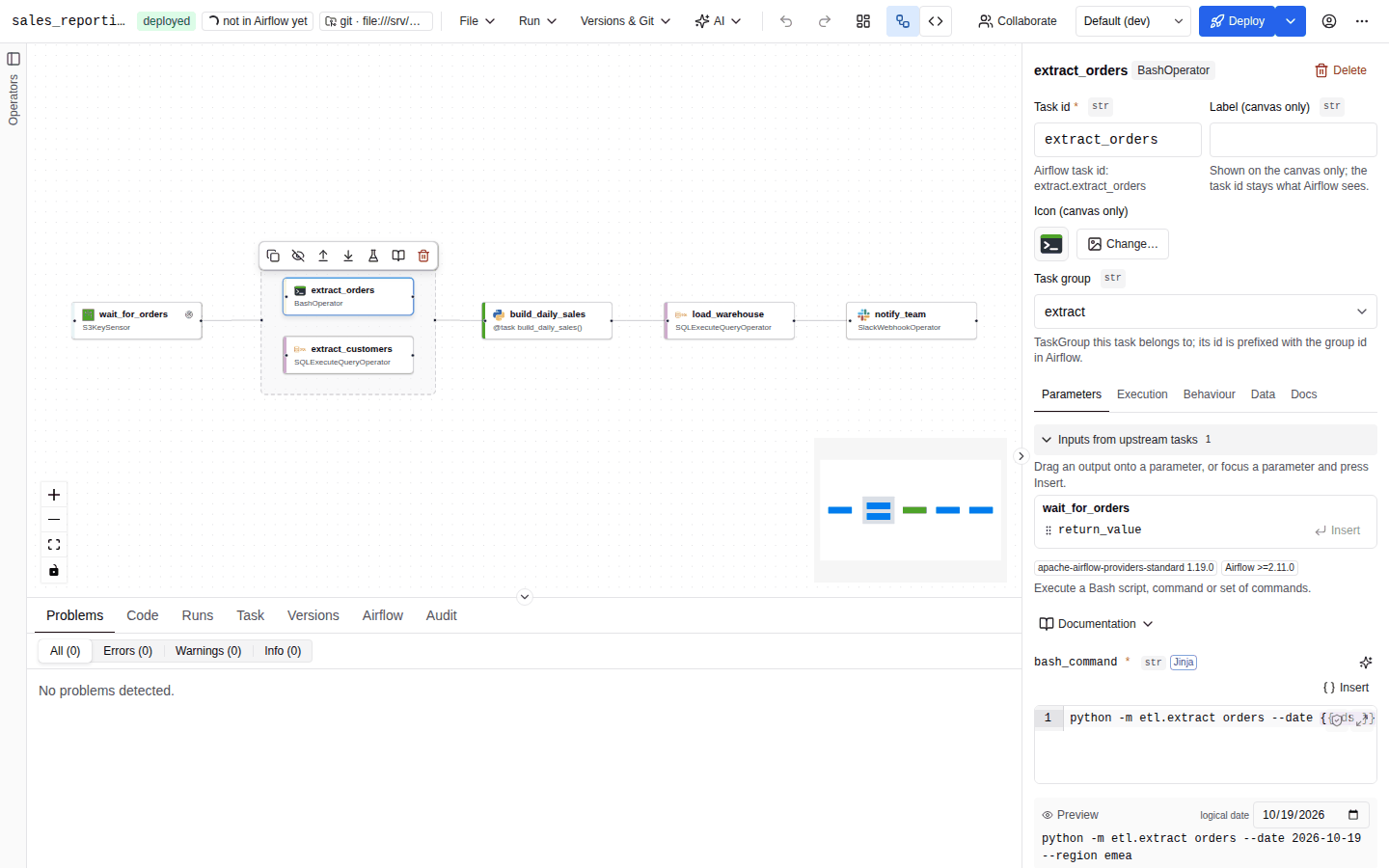
A tab with validation errors shows their count. At the top of the task inspector, a problem banner lists the task's problems; click one to switch to the tab that owns the field and focus it. Delete in the inspector header removes the node.
The task tabs are covered in detail in Operators and parameters, Callbacks, retries and deadlines, TaskFlow and loops and Scheduling and assets.
Bottom panel
| Tab | Contents |
|---|---|
| Problems | Validation findings grouped by task. See Validation. The tab shows a spinner while checks run and a badge with the problem count. |
| Code | The generated output: Python, Airflow YAML, dag-factory and Spec JSON. See Code mode. |
| Runs | Runs of the deployed DAG and the run overlay. See Runs. |
| Task | Details of the selected task. |
| Versions | Version history and comparison. See Versions and diff. |
| Airflow | The DAG's state in Airflow. |
| Audit | The DAG's audit trail (needs audit:read). |
Panels: collapse and resize
The palette, the inspector and the bottom panel can each be hidden and resized.
- Hide: click the small round button on the panel's edge, use Ctrl+B / ⌘B (palette), Ctrl+I / ⌘I (inspector) or Ctrl+J / ⌘J (bottom panel), or use the More (
⋯) menu. A hidden panel leaves a slim rail (side panels) or bar (bottom panel) labelled Operators, Inspector or the active bottom tab; click it to show the panel again. The bottom bar keeps the problem count visible. - Resize: drag the line between the panel and the canvas. With keyboard focus on the line, the arrow keys resize by 16 px, Home and End go to the minimum and maximum size, and double-click restores the default size. The canvas always keeps at least 320 × 160 px.
| Panel | Default size | Minimum size |
|---|---|---|
| Palette | 280 px wide | 200 px |
| Inspector | 380 px wide | 280 px |
| Bottom panel | 280 px tall | 120 px |
Hidden panels and sizes are stored per browser. The canvas refits when a panel is shown or hidden. On a narrow builder the side panels open as overlay drawers instead (see The workbench).
If a panel fails to render, it shows Something went wrong in the … with Try again and, where it applies, Undo last change, so a bad edit never takes the whole builder down.