Versions and diff
Every successful deploy records a version of the DAG. The Versions tab lists those versions, compares any of them with the document you are editing (as a structured diff and as a diff of the generated Python), and loads an old version back into the editor. When two people change the same DAG, AutoAir's optimistic locking detects it and offers a three-way merge instead of silently losing either change.
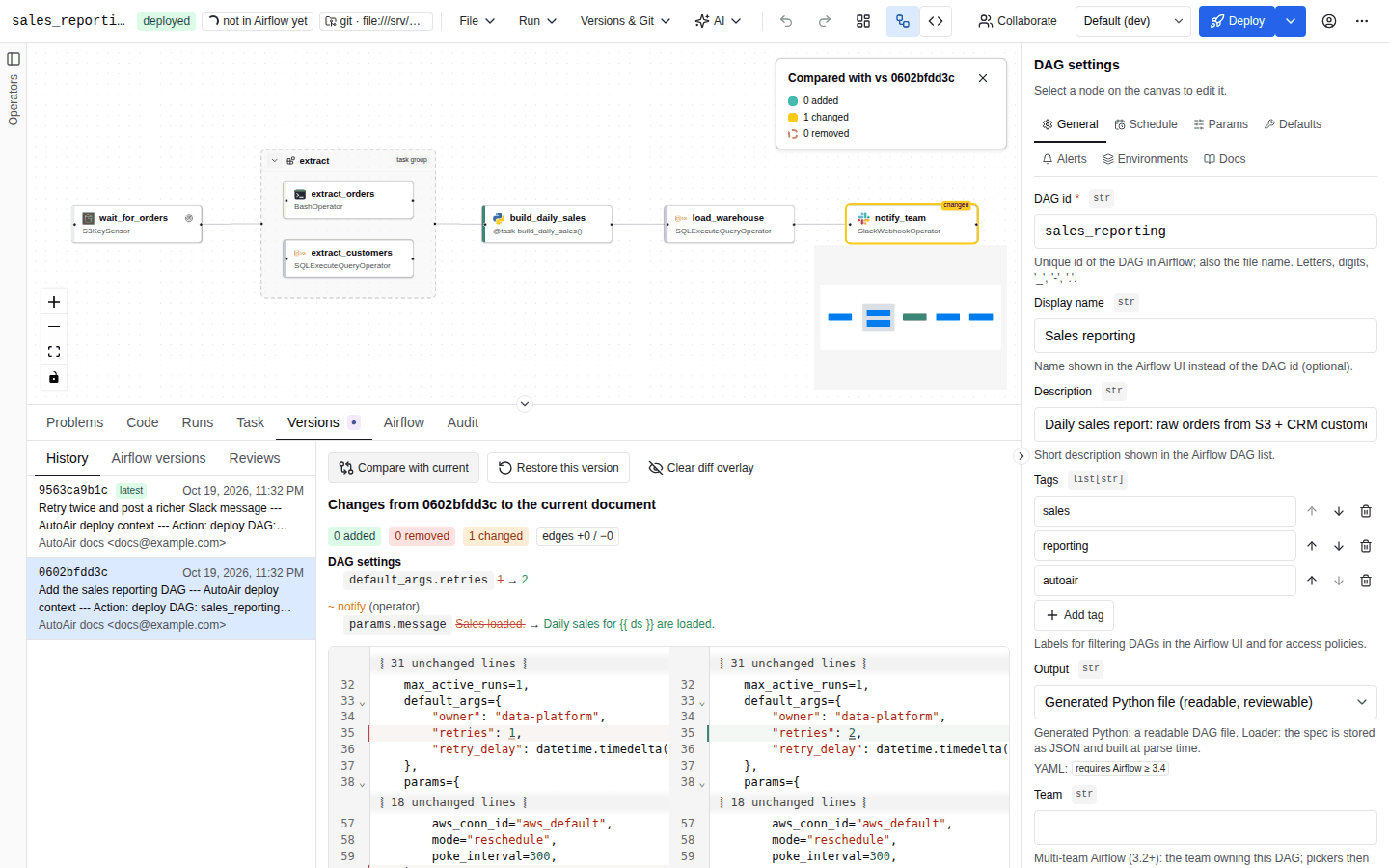
Saved versions
There is no separate "save" step: deploying is saving. Each deploy (the toolbar Deploy button, Ctrl/Cmd+S, or Deploy…; see Deploy) stores the spec and records a version. How versions are stored depends on the deploy target:
| Target | What a version is | Retention |
|---|---|---|
| Local folder, object storage | A snapshot file .autoair/history/<dag_id>/<version>.json next to the deployed files, holding the full spec, timestamp, ETag, author, message and environment. The version id looks like 20261019T101530123456Z-1a2b3c4d: a UTC timestamp plus the first 8 characters of the ETag. | The newest AUTOAIR_STORAGE__HISTORY_LIMIT versions per DAG (default 100, minimum 1). Older snapshots are pruned after each write. |
| Git | A commit that changed the DAG's spec file on the branch Airflow reads (or the environment's branch). The version id is the commit SHA, and the author and message come from the commit. | The repository's history. history_limit does not apply. |
Each version is identified by its ETag, the SHA-256 of the canonical spec JSON. Deploying a spec that is identical to the stored one does not create a new version (the message reads unchanged: <path>).
The deploy message you type in the deploy dialog becomes the version's message. On git it is the commit message. On local and object targets the message also carries the governance context block. See Deploy governance.
Deleting a DAG removes its spec and DAG files. On local and object targets, the history snapshots in .autoair/history/<dag_id>/ are left in place.
Pull requests in progress
In git PR mode, a deploy commits to a per-DAG branch (by default autoair/<dag_id>, or autoair/<environment>/<dag_id>) and opens a pull request. Until it is merged:
- Opening the DAG loads the version on the pending branch, so you keep building on your own proposal rather than on the base branch.
- The toolbar shows a purple PR open badge that links to the pull request. Versions & Git → Open pull request opens it too.
- The Open a DAG dialog marks the DAG with PR open.
Once the pull request is merged or closed, its branch is ignored and the DAG loads from the base branch again.
Pull requests are opened through the host's API for the github, gitlab (merge requests), bitbucket, azure (Azure DevOps) and gitea (Gitea and Forgejo) providers. With the local provider (the git CLI against any remote), PR mode pushes the per-DAG branch but cannot open a pull request or see whether it was merged: the branch counts as pending, and the DAG loads from it, until the branch is deleted on the remote. See Deploy targets.
Unsaved drafts in the browser
While the document has unsaved changes, the browser keeps a draft in localStorage (key autoair.draft.v1, written 800 ms after the last edit). It is cleared once you deploy or discard the changes.
If you close the tab with unsaved changes, the browser warns you first. If you open AutoAir again and a draft exists, a notification reads Unsaved DAG “dag_id” found, followed by "Kept in this browser at <time>.". Click Restore to reopen the DAG and load the draft as unsaved changes.
Drafts live only in that browser profile. They are not on the server, not shared with colleagues and not available on another machine. Use collaboration to share work in progress, or deploy it to a PR branch.
Actions that would replace the document (New DAG, Open…, Use template, Restore this version) ask "Discard unsaved changes?" first.
The Versions tab
Open Versions & Git → History…, or the Versions tab in the bottom panel. A DAG that was never deployed shows "Deploy the DAG first: this needs it in Airflow." The tab has three sub-tabs:
| Sub-tab | Content |
|---|---|
| History | The 50 most recent stored versions (GET /api/vcs/{dag_id}/history), newest first. The newest has the badge latest. Each row shows the version id, time, message (or "(no message)") and author. |
| Airflow versions | The DAG versions Airflow itself recorded (v1, v2, …), with creation time and bundle_name @ bundle_version. For a git bundle the bundle version is the commit a run is pinned to. Empty until Airflow has parsed the DAG ("Airflow has not recorded versions of this DAG yet."). |
| Reviews | Reviews of the saved version. See Reviews and approvals. |
Select a version in History to use the actions below.
Compare with current
Click Compare with current. AutoAir loads the selected version and diffs it against the document as it is in the editor now, unsaved changes included. The panel heading reads "Changes from <version> to the current document". You get two views:
Spec diff. A structured summary computed on the spec, not on text:
- Badges for N added, N removed and N changed tasks or groups, edges +N / −N, and N moved for nodes whose only change is their position.
- A DAG settings section listing each changed DAG field as
path: before → after. - One line per changed node:
+added,−removed,~changed, with the changed fields. - "No differences." when the two are identical.
Tasks are matched by their internal node id and edges by their source and target, so renaming a task id shows up as a changed field, not as a delete plus an add. Lists other than tasks and edges, such as tags, are compared as a whole.
Canvas overlay. The canvas highlights added, removed and changed nodes, and a badge reads vs <version>. Moved-only nodes are not highlighted. Click Clear diff overlay to remove it.
Code diff. Below the summary, "Generated Python: selected version (left) vs current (right)" shows the DAG files that both versions generate, side by side, with unchanged regions collapsed. Use it to see exactly what Airflow will receive, for example how a changed parameter is rendered.
If the comparison fails, for example because a version can no longer be read, a toast reads Compare failed.
Restore this version
- Select the version and click Restore this version.
- Confirm "Discard unsaved changes?".
- The version is loaded into the editor as unsaved changes ("Version … loaded as unsaved changes"). Nothing is written yet.
- Review it, then deploy. The deploy creates a new version on top of the latest one. History is never rewritten, and in git mode the restore goes through a pull request like any other change.
Because a restored document keeps the latest stored ETag as its base, deploying it does not trigger a conflict unless someone else deployed in the meantime.
Concurrent changes and the merge dialog
Every deploy sends the ETag of the version the editor started from (base_etag, or an If-Match header). If the stored DAG has moved on since then, because someone else deployed, the deploy is refused: nothing is written, and the API answers deployed: false, status: "conflict" with the stored version. The editor opens Someone else changed this DAG ("The stored DAG moved to <version> since you opened it. Merge their changes with yours, then deploy again.").
AutoAir runs a three-way merge (POST /api/vcs/merge). The base is the version you started from, or an empty DAG if yours was new. "Mine" is your editor, and "theirs" is the stored version.
Clean merge. If you and they changed different parts of the DAG, the dialog reads "The changes merge cleanly". Choose one of:
- Apply merged & redeploy to deploy the merged DAG right away.
- Load merged (don't deploy) to load it into the editor so you can check it first.
Conflicts. If the same thing changed on both sides, the dialog lists each conflict ("N conflicts need a decision"):
- For each conflict you see its path, such as
schedule,nodes[extract].params.sqloredges[a->b](or (whole DAG)), the reason, and three columns: Original, Mine and Theirs. A deleted value shows as (absent). - Pick Mine or Theirs for each one, or use Use all mine / Use all theirs. The footer counts "N / M resolved".
- Click Resolve & redeploy. It is enabled once every conflict is resolved.
The merge reports these conflict reasons: "changed on both sides", "deleted on one side, modified on the other", "the object type changed", an edge that references a deleted node, and a parent group that was deleted. If the combined DAG is invalid even though each side was valid, there is a whole-DAG conflict: "The combined DAG is invalid as merged; resolve the conflicts and fix any remaining problems on the canvas." In that case, load the merge and fix it on the canvas.
Overwrite with mine ("Discard their changes and deploy your version") skips the merge and deploys your document over theirs. Their change is then gone from the current version, but it remains in history.
In a collaboration session, deploys by participants become everyone's new base automatically. The conflict dialog only appears for changes made outside the session.
Hand-edited and foreign files
AutoAir writes only files it generated. Each one carries a "Generated by AutoAir" marker, and AutoAir records its hash:
| Situation | Deploy result | What to do |
|---|---|---|
| A file at the target path was not created by AutoAir | Refused (HTTP 409): "… exists and was not created by AutoAir; refusing to overwrite it". AutoAir never overwrites or deletes it. | Choose another DAG id, or remove the file yourself. To bring a hand-written DAG into AutoAir, import it. |
| The generated file was edited by hand after AutoAir wrote it ("ejected") | Refused with status ejected. For Python output the deploy dialog offers to apply your change to the file (Files changed outside AutoAir). For the other output modes and raw code the editor shows The DAG file was edited by hand with the file path. | Move the manual change into the DAG first, for example through code mode. Overwrite (force) replaces the manual edits with the generated file; it is shown only when the result reports conflict.force_allowed, which needs preserve.allow_force_overwrite=true (default false) and the permission deploy:overwrite_ejected. Otherwise the editor shows the server's reason. |
| The DAG keeps a hand-written file and the deploy would replace it (another output mode, conversion to raw code) | Refused with status ejected (HTTP 200, conflict.hand_written: true): This DAG keeps a hand-written file. | Deploy with the Python output mode, or keep the DAG as raw code. Overwrite (force) appears under the same conditions as above, and only for a kept file that carries AutoAir's marker. |
AutoAir's state record of the DAG (.autoair/state/<dag_id>.json in the target) cannot be read | Refused (HTTP 409): "AutoAir's state record … is unreadable …". No file of the DAG is replaced or deleted, also not with force, because the record is what says which files are hand-written or hand-edited. | Restore the record (version control, a backup), or delete it. |
| The state record is missing and the DAG file differs from the new one | Refused with status ejected, as for a hand-edited file: nothing records whether the file was edited. An unchanged loader stub is replaced as usual. | Check the file, then deploy with Overwrite (force). |
When you open a DAG that exists in Airflow but has no AutoAir spec, the dialog <dag_id> is not managed by AutoAir offers Import this DAG from Airflow (needs code:execute), Start an empty DAG, or, when the DAG cannot be converted, Open in code editor. The original file is not changed until you deploy.
Open and duplicate
- File → Open… lists every DAG stored by AutoAir. Search by id, display name, description or tags; every word must match. Each row shows the task count, the mode, the last update and the start of the ETag, plus the badges open (the current DAG) and PR open.
- File → Duplicate… copies the current DAG (tasks, schedule, settings) under a New DAG id (default
<id>_copy). The copy opens as a new, unsaved DAG with its own history once it is deployed.
Permissions and API
| Action | Permission |
|---|---|
| List, read, compare versions; merge | spec:read (plus Airflow read access to the DAG) |
| Deploy a restored or merged version | spec:write and, if it goes live, deploy |
| See Airflow versions | airflow:read |
| Method and path | Purpose |
|---|---|
GET /api/vcs/{dag_id}/history?limit= | Version list |
GET /api/vcs/{dag_id}/versions/{version} | One version's spec |
GET /api/vcs/{dag_id}/diff?from=&to= | Structured diff between versions (to defaults to current) |
POST /api/vcs/diff | Diff two specs sent in the body |
POST /api/vcs/merge | Three-way merge (base, ours, theirs) |
GET /api/airflow/dags/{dag_id}/versions | Airflow's DAG versions |
See the REST API reference for request and response schemas.