Operator templates
An operator template (also called a blueprint) is one configured task saved for reuse. A platform team can publish, for example, a "Notify Slack" BashOperator with a fixed pool and retry policy, or a Spark submit task with the cluster settings already filled in. Authors then insert it from the palette. For each configured field the template decides whether it is:
| Mode | When the task is inserted | Afterwards |
|---|---|---|
| Default | The value is copied into the new task. | Freely editable. |
| Locked | The value is copied. | Read-only in the inspector. Validation and deploy reject any change. |
| Required | The author must enter a value in the insert dialog. | Editable, but it may not be empty. |
The UI describes the modes as: "Default: copied and editable. Locked: read-only, validation flags changes. Required: asked when the template is inserted."
The task type is always locked: the operator class, the @task decorator of a Python task, or the handler of a custom node. A task inserted from a template cannot be turned into a different operator.
Operator templates are a different thing from DAG templates and fragments. A DAG template starts a whole DAG, a fragment inserts a group of tasks as plain, unrestricted copies, and an operator template inserts a single task that stays bound to its template.
Who can do what
| Action | Permission | Built-in roles |
|---|---|---|
| Insert an operator template, see the banner | builder:use | every role |
| Create, publish a new version, duplicate, import, delete | template:write | TemplateManager, Admin |
| Change a template owned by another team (multi-team deployments) | admin:config | Admin |
The TemplateManager role is Viewer plus template:write and icon:write. It is meant for people who curate templates, marketplace installs and icons. With the default role mapping, Airflow Op users and users with DAG edit permission in Airflow also hold TemplateManager. See IAM to restrict it.
Owner teams. When the deployment belongs to a team (AUTOAIR_TEAM), a template whose Owner team is a different team can only be changed or deleted by holders of admin:config. Templates without an owner team, and templates of the deployment's own team, follow template:write alone. Without AUTOAIR_TEAM the owner team is informational.
The feature follows AUTOAIR_FEATURES__TEMPLATES (features.templates, default true). When it is off, the template API answers 404 and the UI hides every template action.
There are two ways to create an operator template: the operator template editor, which needs no DAG, and Save as operator template on a task that is already on a canvas.
Create an operator template without a DAG
The operator template editor works in every editor mode (visual only, code only, or both), because it never touches the canvas. Open it from:
- the palette: the New operator template button next to the search box (visual mode);
- the template gallery (File → New from template…, or the command Operator templates…): New operator template in the footer, and Edit or Duplicate on a selected operator template;
- the command palette (Ctrl/Cmd+K): New operator template…;
- the admin panel's Templates tab: New operator template, and Edit on a saved operator template.
The dialog New operator template has these parts:
| Part | Contents |
|---|---|
| Details | Title, Id (generated from the title; fixed once the template exists), Description, Owner team (defaults to the deployment's team), Tags, Version (empty: the next number), Documentation URL (http or https), Default task id (the base of the task id on insert), and the icon. |
| Operator | A picker over the operator catalog with search, the palette's groups and icons. Operators the builder cannot configure are shown but disabled. Change operator keeps the task settings and resets the parameters. |
| Parameters | The inspector's parameter form for that operator: every widget, type badge, Jinja and code editor, examples and documentation link. |
| Task settings | The inspector's execution settings: owner, trigger rule, retries, retry delay and backoff, timeout, pool, pool slots, queue, priority, weight rule, executor and executor config. |
| Field modes | One row per configured field with a Default / Locked / Required switch. Add a field lists parameters and settings that have no value yet, to ask them on insert. The tab label counts the locked and required fields. |
| Code preview | The generated code of the task in a one-task preview DAG. |
| Versions | When editing: the stored versions and a diff between a selected version and the draft (see below). |
| Validation | Live problems of the task, from the same validation as the editor (catalog parameters, Jinja, policy). Clicking a problem opens its field. Problems of Required fields are not shown: their value is asked on insert. |
Create template stays disabled while the title, id or documentation URL is invalid or the task has validation errors ("Fix N errors to save."). The toast reads "Operator template “Title” saved (v1)".
Import JSON… loads a file written by Export JSON (or the body of POST /api/templates) into the editor; nothing is saved until you click save. A file that is not an operator template is refused with a message.
Save a task as an operator template
-
Configure a task on the canvas: its parameters in the inspector, plus any task settings that should travel with it (the settings a template can carry are listed under Which fields are listed below).
-
Select exactly that one task, then right-click it and choose Save as operator template…. Alternatively, open the command palette (Ctrl/Cmd+K) and run Save selected task as operator template…. Neither entry is in the File menu.
-
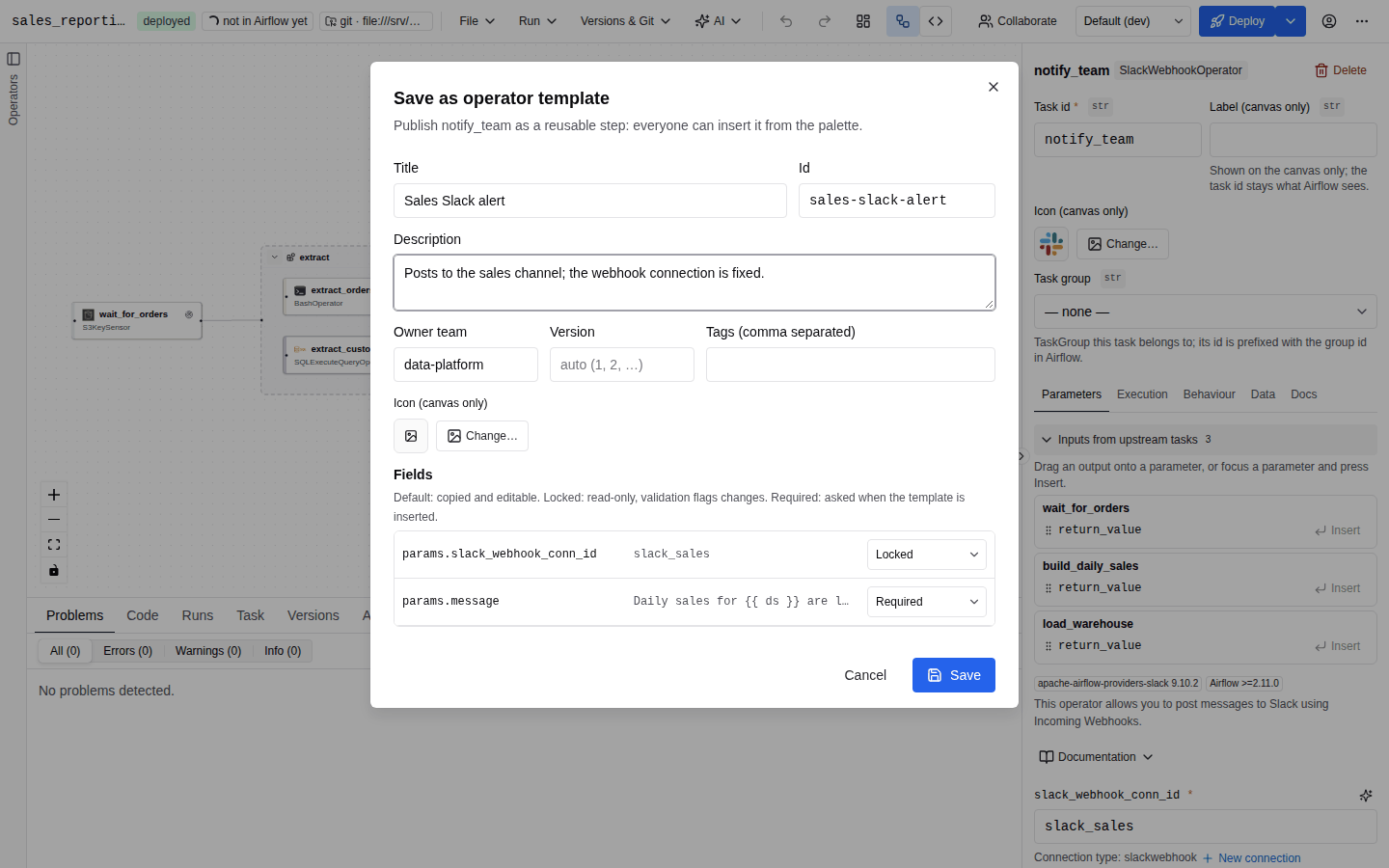
Fill in the dialog Save as operator template:
Field Notes Title Required, 1 to 120 characters. Shown in the palette. Id Generated from the title. Lowercase letters, digits, _and-, starting with a letter or digit. It identifies the template across versions.Description Shown in the palette row and the insert dialog. Owner team Shown in the palette and the banner, and searchable. Version Leave it empty for automatic numbering (auto (1, 2, …)), or type a version string of your own. Tags Comma separated, searchable. Icon Optional canvas icon. Fields One row per configured field, each with a Mode of <field> selector: Default, Locked or Required. -
Click Save. The toast reads "Operator template “Title” saved (v1)".
Which fields are listed. The dialog lists the entries of the task's parameter maps (params.* for operators, arguments.* and decorator_kwargs.* for Python tasks, config.* for custom nodes) and these task settings, when they are set: trigger_rule, retries, retry_delay_seconds, retry_exponential_backoff, execution_timeout_seconds, pool, pool_slots, queue, owner, priority_weight, weight_rule, executor, max_active_tis_per_dagrun, depends_on_past, doc_md, and the code of a Python task. A field you have not set does not appear. If no field is set, the dialog shows "No configured fields: the task type alone is saved." Identity and layout fields (task id, label, icon, group, position) are never part of a template.
The value of a Required field is not stored. Each author supplies their own at insert time.
The server rejects a template with a field that is both locked and required, a field path it does not recognise, or an id that already belongs to a DAG template or fragment. The last case shows "This id belongs to a DAG template or fragment." in the dialog.
Edit a template and publish a new version
Open the template with Edit (gallery or admin panel) and click Publish new version. From a canvas, saving a task with the same Id in Save as operator template does the same: the dialog shows "An operator template with this id exists (v3): saving publishes a new version." Unless you type a version, the server increments the number; a non-numeric previous version restarts at 1. A version number that was already published cannot be used again.
Older versions stay readable. The Versions tab of the editor lists them with who saved them and when; select one to see a diff against your draft, and Load vN into the editor to publish an old version again as the next one. The server keeps the last AUTOAIR_TEMPLATES_HISTORY_LIMIT versions of each template (default 100).
Concurrent edits. The editor saves with the etag of the version it opened. If someone published a version in the meantime, the save is refused and the editor shows "Someone changed this template since you opened it (now v4)" with Reload latest (discards your changes) and Save as new version anyway. Creating a template whose id was taken in the meantime offers to publish the draft as a new version of the existing one.
Tasks inserted earlier keep the values they were inserted with, and record the version they came from:
- The inspector banner shows a v4 available badge.
- Validation reports an informational
template_updatedproblem. - Locked values are always checked against the current version of the template. If a new version changes a locked value, existing tasks that still carry the old value fail validation (
template_locked) until someone updates them.
The inspector has no "update to the latest version" or "detach from template" action. To bring a task up to date, change its values to match the new version by hand (the banner lists the locked fields), or delete the task and insert the template again; the new task records the current version. A task keeps its link to the template for as long as it exists.
Insert an operator template
Operator templates live in the palette section Operator templates. Each row shows the operator's short name, the owner team, the version and the description (or "Reusable configured task"). They are also listed in the template gallery (File → New from template…, filter Operator template): select one and click Insert into canvas; the steps below then apply in the same way.
- Find the template. Search the palette, or press Shift+A (or double-click the empty canvas) to open the insert palette, whose placeholder reads "Search operators, @task variants, templates…". Search matches the title, tags, operator type, owner team and category. The words "template", "blueprint" and "operator template" also match.
- Double-click the row, press Enter on it, or drag it onto the canvas. Dropping onto a task group places the task inside the group.
- If the template has Required fields, the dialog Insert “Title” opens. It shows the owner, version and description, the line "This template needs N inputs", an input for each required field (operator parameters use the same widgets as the inspector), and a Fixed by the template box listing the locked values. Insert stays disabled until every required input has a value.
The new task gets a unique task id (and a unique function name for a Python task) and a reference to the template id and version. That reference is AutoAir metadata only: it is not written into the generated DAG file.
In the gallery, an operator template is never used to start a new DAG: Insert into canvas adds its task to the open DAG, like a fragment. The gallery preview shows the task, its locked fields and the fields asked on insert.
Working with a templated task
The inspector of a templated task shows:
- A banner From operator template “Title” with the owner team and version, plus a vN available badge when a newer version exists.
- A lock icon labelled Locked fields, with the tooltip "Fixed by the operator template: read-only here, and validation reports any change."
- Filled in on insert: … listing the fields that were required.
- On each locked parameter, the hint "Locked by the operator template".
The inspector reverts any edit to a locked field. Other ways of changing a task bypass the inspector: code mode, YAML apply, the API, the AI assistant, MCP or a hand-edited spec. The server therefore checks templates again.
Server-side enforcement
POST /api/validate and every deploy (PUT /api/specs/{dag_id}, including deploy proposals) compare each templated task with the current template:
| Code | Severity | Raised when |
|---|---|---|
template_locked | error | The task type differs from the template, or a locked field differs. The message names the field, the template and the expected value, for example "retries is locked by operator template 'Notify Slack' (v2) (expected 4)". |
template_required | error | A required field is empty. |
template_missing | warning | The template was deleted. Its locked values are no longer enforced. |
template_updated | info | The template has a newer version than the one the task was inserted from. |
An error blocks the deploy: nothing is written, the deploy answers with status invalid ("validation failed; nothing was written"), and the problems appear in the Problems panel. This means a locked value holds even for users who can edit the DAG in every other respect.
Duplicate, export and delete
Duplicate opens the editor on a copy (id <id>-copy, title "… (copy)") that is saved as a new template at version 1. Export JSON downloads the draft.
Delete in the editor asks for confirmation and deletes every version. If the open DAG has tasks created from the template, the confirmation says how many. Only the open DAG is checked: AutoAir does not scan every stored DAG. The template can also be deleted from the gallery, the admin panel's Templates tab (Origin "saved"; see Admin panel) or with DELETE /api/templates/{template_id}; all need template:write. Tasks that were inserted from it remain in their DAGs, but from then on they raise a template_missing warning and are no longer constrained.
Storage and API
Operator templates share the template store with DAG templates and fragments (kind: "operator"). With the default file backend they are JSON files under AUTOAIR_TEMPLATES_URL (default <state>/templates, any fsspec URL) and the version histories are files under its _history folder. With a SQL database backend they are rows (collections templates and template_versions), shared by every replica. Each save is an atomic read-modify-write, so concurrent saves on several replicas get distinct version numbers. Saves and deletes are audited as template_save (with version, previous_version and created) and template_delete.
| Method and path | Permission |
|---|---|
GET /api/templates, GET /api/templates/{template_id} (the response carries etag, also as the ETag header) | builder:use |
GET /api/templates/{template_id}/versions, GET /api/templates/{template_id}/versions/{version} | builder:use |
POST /api/templates (body with kind: "operator" and a blueprint of node, locked, required; optional docs_url) creates a template or publishes its next version. If-Match: <etag> saves only if the template is unchanged, If-None-Match: * only if the id is free; otherwise 409 with current_version, current_etag and updated_by | template:write |
DELETE /api/templates/{template_id} (optional If-Match) | template:write |
MCP
The MCP server has four tools for operator templates, gated by features.templates:
| Tool | Permission | What it does |
|---|---|---|
list_operator_templates | builder:use | Lists operator templates; query matches id, title, description, tags, owner team and operator class. |
get_operator_template | builder:use | One template (current or a version) with its etag and version history. |
save_operator_template | template:write | Creates a template, or publishes the next version when if_match carries the etag from get_operator_template. The task is validated first; errors refuse the save. A dry run unless confirm=true. |
delete_operator_template | template:write | Deletes a template and its history; a dry run unless confirm=true. |
The marketplace distributes only DAG templates, fragments and extensions. Operator templates cannot be published through it.
Related
- Templates and fragments
- Operators and parameters
- Validation
- Policy for server-wide rules such as forbidden operators or minimum retries