Templates and fragments
AutoAir has three kinds of reusable building blocks, all kept in one template store:
| Kind | What it holds | How it is used |
|---|---|---|
| DAG template | A complete DAG: tasks, edges and DAG settings. | Use template creates a new DAG from it. |
| Fragment | A selection of tasks and task groups with the edges between them. Fragments are AutoAir's macro, or building-block, mechanism. | Insert into canvas, or from the palette. The tasks are copied into the current DAG. |
| Operator template | One configured task with locked and required fields. | Inserted from the palette or the gallery. See Operator templates. |
A DAG template or fragment is copied when you use it. The copy has no link back to the template, so later changes to the template do not affect DAGs already built from it. Fragments are not special nodes in the spec: after insertion they are ordinary tasks.
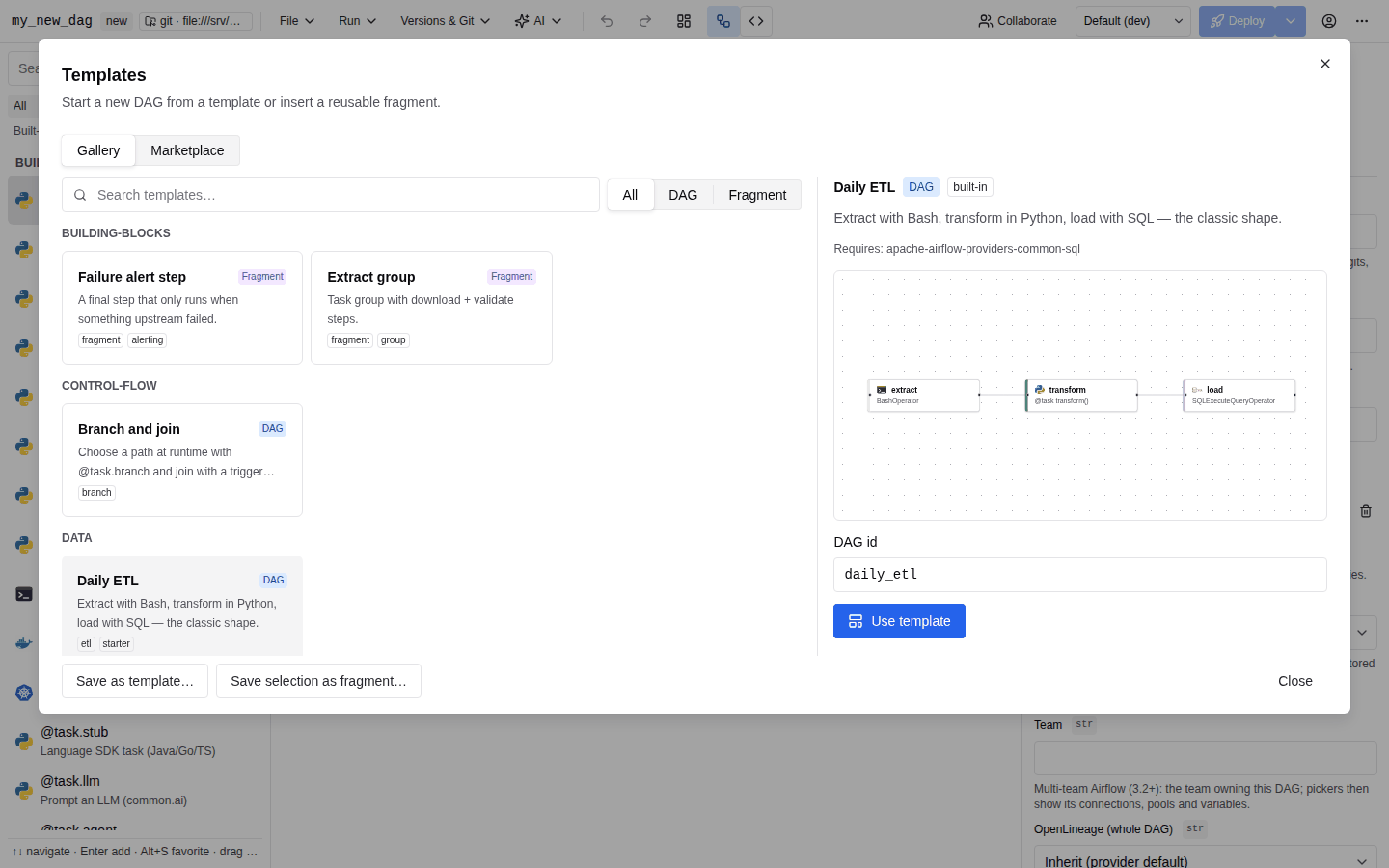
The gallery
Open the gallery with File → New from template…, the Start from a template… button on an empty canvas, or the command palette (Ctrl/Cmd+K).
The Templates dialog ("Start a new DAG from a template, or insert a fragment or an operator template into the canvas.") contains:
- A Gallery / Marketplace switch at the top. Marketplace appears only when the marketplace feature is on. See Marketplace.
- Search templates…, which matches id, title, description, category and tags. Every word you type must match.
- A kind filter: All, DAG, Fragment or Operator template.
- Cards grouped by category. Templates without a category go under Other. Badges show the kind, custom for saved templates, and the tags. A template installed from a marketplace carries the tag
marketplace:<source>. - A preview of the selected template: a small graph (in the current light or dark theme), Requires: … for the provider packages it needs, and a built-in badge for templates that ship with AutoAir. An operator template previews its single task and lists its Locked: … fields and the fields Asked on insert: ….
Start a DAG from a template
- Select a DAG template.
- Enter a DAG id (letters, digits,
_,-and.). - Click Use template. If the current DAG has unsaved changes, AutoAir asks before discarding them.
The new DAG opens with unsaved changes. Review it, then deploy it.
Insert a fragment
Select a fragment and click Insert into canvas, or find it in the palette section Templates (hint "Reusable group of tasks") and double-click it or drag it onto the canvas. The search terms "template" and "fragment" list every fragment.
Insertion copies the fragment without overwriting anything:
- Each node gets a new internal id.
- A task id, group id or Python function name that already exists in the DAG gets a numeric suffix (
_1,_2, …). - XCom references between the fragment's own tasks are rewired to the new copies.
- Dropping the fragment onto a task group places it inside that group. Fragments saved without positions are laid out horizontally.
Fragments do not carry edges to tasks outside the selection. Connect the inserted tasks to the rest of your DAG yourself.
Insert an operator template
Select an operator template (filter Operator template) and click Insert into canvas. The gallery closes and the task is added exactly as from the palette: if the template has required fields, the Insert “Title” form opens first. See Insert an operator template.
Built-in templates
AutoAir ships these templates (src/autoair/templates/builtin.py). A built-in template whose minimum Airflow version is higher than the installed one is listed as unavailable.
| Id | Title | Kind | Category | Description |
|---|---|---|---|---|
etl-basic | Daily ETL | DAG | data | Extract with Bash, transform in Python, load with SQL. Requires apache-airflow-providers-common-sql. |
event-driven-consumer | Asset-triggered consumer | DAG | event-driven | Runs whenever upstream DAGs update the orders asset (data-aware scheduling). |
human-approval | Human approval gate | DAG | human-in-the-loop | Pauses for a human decision before publishing. Needs Airflow 3.1 or later. See Human-in-the-loop. |
branching | Branch and join | DAG | control-flow | Chooses a path at runtime with @task.branch and joins with a trigger rule. |
dynamic-mapping | Fan-out over files | DAG | parallelism | Lists inputs, processes each one in parallel (dynamic task mapping), then aggregates. |
setup-teardown | Ephemeral resources | DAG | infrastructure | Creates a resource, uses it, and always cleans it up (setup/teardown). |
wait-for-file | Wait for a file | DAG | sensors | A reschedule-mode sensor waits for a file without holding a worker slot. |
trigger-downstream | Trigger another DAG | DAG | orchestration | Starts a downstream DAG and waits for it to finish. |
fragment-notify-on-failure | Failure alert step | Fragment | building-blocks | A final step that only runs when something upstream failed. |
fragment-extract-group | Extract group | Fragment | building-blocks | A task group with download and validate steps. |
Built-in templates cannot be deleted or overwritten: saving a template with a built-in id is refused.
Save your own templates
Saving needs template:write, which the TemplateManager and Admin roles hold (see IAM). Without it the save items are disabled.
Save the current DAG as a template
- Choose File → Save as template…, or the same button in the gallery footer.
- Check the prefilled Title, Description and Tags (comma separated), which come from the DAG. Set an Id and a Category. The category defaults to
customwhen left empty. - Click Save. The toast reads "Template “Title” saved".
Save a selection as a fragment
- Select one or more nodes on the canvas. Selecting a task group includes all of its members.
- Choose File → Save selection as fragment…. The item is disabled with nothing selected ("Select one or more nodes on the canvas first"). The dialog summarises the selection, for example "4 nodes, 3 edges selected".
- Fill in the fields as above and click Save.
Only edges between selected nodes are saved. Nodes whose group was not part of the selection are stored with absolute positions.
Ids and overwriting
Template ids use lowercase letters, digits, _ and -, start with a letter or digit, and are at most 81 characters long. Titles are 1 to 120 characters. Saving an existing id replaces that template: there is no version history for DAG templates and fragments. An id cannot change kind: for example, saving a fragment over an operator template's id is refused.
Delete a template
Select a saved (custom) template in the gallery and click Delete, then confirm "Delete template “Title”?". Administrators can also delete saved templates in the admin panel's Templates tab (columns Title, ID, Kind, Category, Origin). Built-in templates show the origin built-in and cannot be deleted.
Storage
| Backend | Where templates live |
|---|---|
| File (default) | One JSON file per template, <id>.json, under AUTOAIR_TEMPLATES_URL. The default is <state>/templates. Any fsspec URL works, for example s3://bucket/autoair/templates. |
| SQLite / PostgreSQL | Rows in AutoAir's database (AUTOAIR_DATABASE__BACKEND); see Database. |
With several replicas on the file backend, templates_url must point at storage that every replica sees. A saved template with the same id as a built-in one is listed in its place, though the API refuses to create one. Unreadable template files are skipped with a warning in the server log.
Saves and deletes are recorded in the audit trail (template_save, template_delete).
Settings, permissions and API
| Setting | Default | Description |
|---|---|---|
AUTOAIR_FEATURES__TEMPLATES | true | Gallery and saving templates. When off, the routes answer 404 and the menu items are hidden. |
AUTOAIR_TEMPLATES_URL | <state>/templates | File backend location (fsspec URL). |
| Method and path | Permission |
|---|---|
GET /api/templates, GET /api/templates/{template_id} | builder:use |
POST /api/templates | template:write |
DELETE /api/templates/{template_id} | template:write |
A template is JSON with id, title, kind (dag, fragment or operator), optional description, category, tags and icon, and exactly one payload that matches the kind: spec for a DAG template, fragment for a fragment, blueprint for an operator template. For publishing templates to other installations, see Marketplace and Publishing a marketplace.