Build your first DAG
This tutorial builds a three-task pipeline named orders_daily:
extractis aBashOperatorthat downloads the day's orders as a JSON file.transformis a Python task (TaskFlow@task) that reads the file and returns the day's order total. The returned value goes to XCom.loadis aSQLExecuteQueryOperatorthat inserts the total into a warehouse table, reading it from XCom with Jinja.
The DAG runs daily. Along the way you fix a problem that live validation finds, preview the generated Python and deploy it. The screenshots below were taken while building exactly this DAG.
Before you start
You need a running AutoAir with BashOperator and SQLExecuteQueryOperator in its palette. BashOperator comes with apache-airflow-providers-standard; SQLExecuteQueryOperator with apache-airflow-providers-common-sql. Both must be installed next to AutoAir (and in Airflow, to run the DAG):
- Local mode is enough for every step except running the DAG: follow Quick start: local mode. Install the
airflowextra (or Airflow itself) so thatapache-airflow-providers-standardis present and Validate in Airflow can import the DAG. - Plugin or standalone mode additionally lets you trigger the deployed DAG and watch it run. In Airflow 3.1 and newer, open Browse → DAG Builder; in Airflow 3.0 open
/autoair/ui/.
To deploy you need the permission to save specs (the Author role or more; in local mode every user has full rights). See IAM.
1. Start with an empty DAG
A new builder opens on an empty canvas with Start your DAG: drag an operator from the palette, or use Search operators…, Start from a template…, Generate with AI… or Write it as code. This tutorial uses the canvas. If another DAG is open, use File → New DAG.
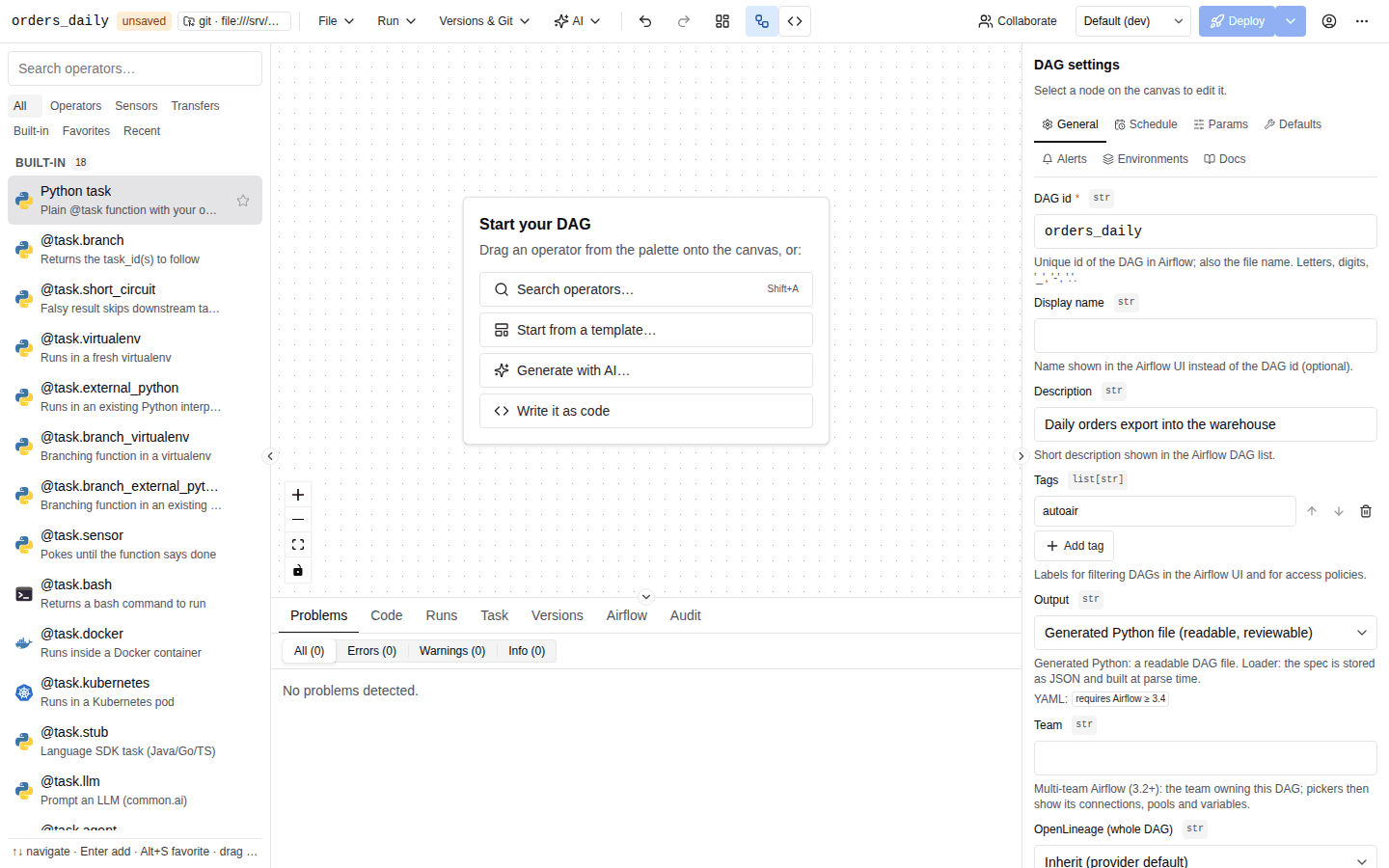
Click an empty spot of the canvas. With no node selected, the inspector on the right shows DAG settings with the tabs General, Schedule, Params, Defaults, Alerts, Environments and Docs. On General:
- Set DAG id to
orders_daily. The DAG id is unique in Airflow and is also the file name (orders_daily.py); it may contain letters, digits,_,-and.. A new DAG starts asmy_new_dag. - Set Description to
Daily orders export into the warehouse. - Keep the Tags entry
autoair; add more with Add tag if you like.
Leave Output at Generated Python file (readable, reviewable).
2. Add the extract task
The palette on the left lists every operator, sensor and transfer found in the installed packages, plus built-in nodes. Its tabs are All, Operators, Sensors, Transfers, Built-in, Favorites and Recent.
- Type
bashinto Search operators…. - Drag
BashOperatoronto the canvas, or double-click it, or select it with the arrow keys and press Enter.
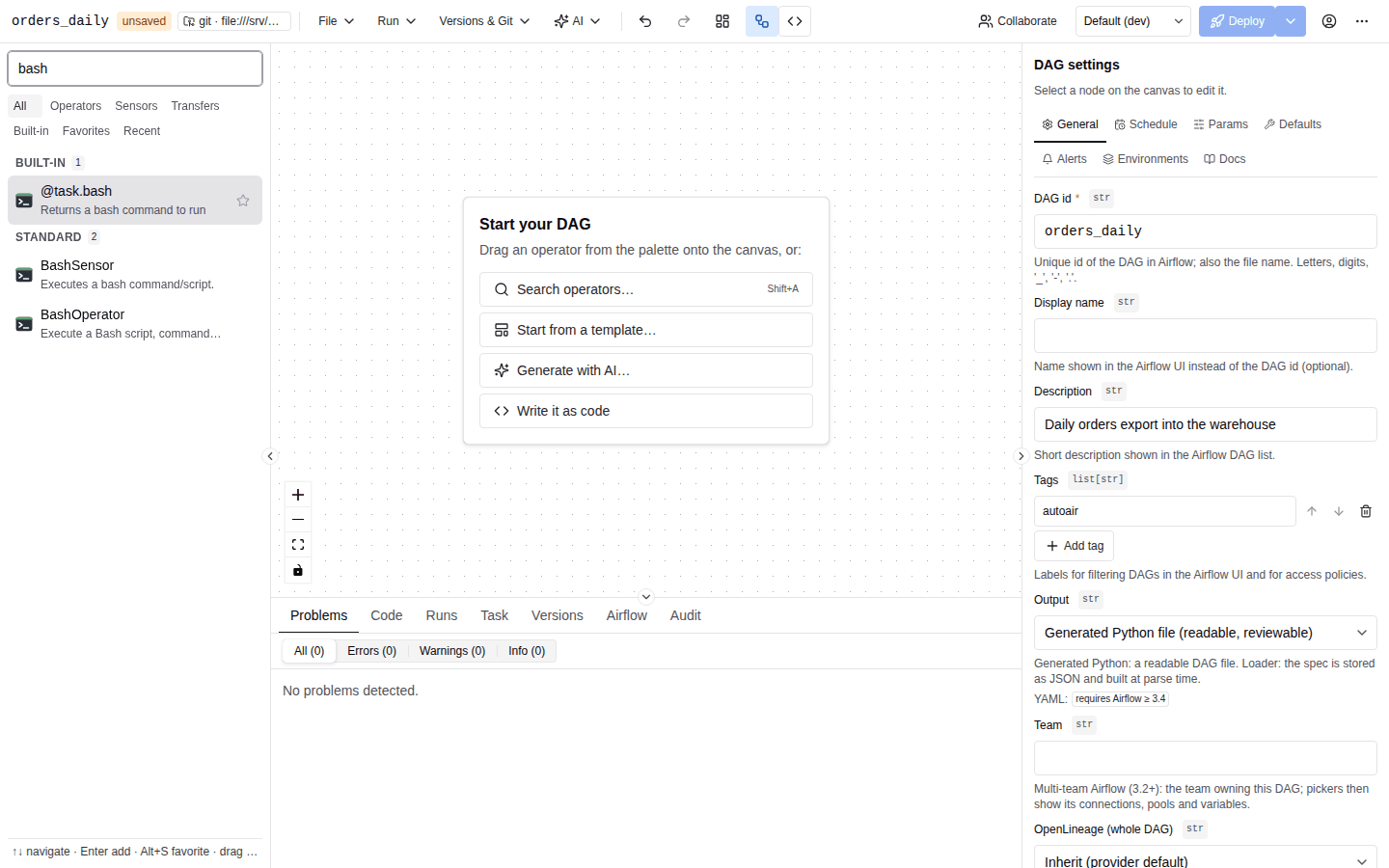
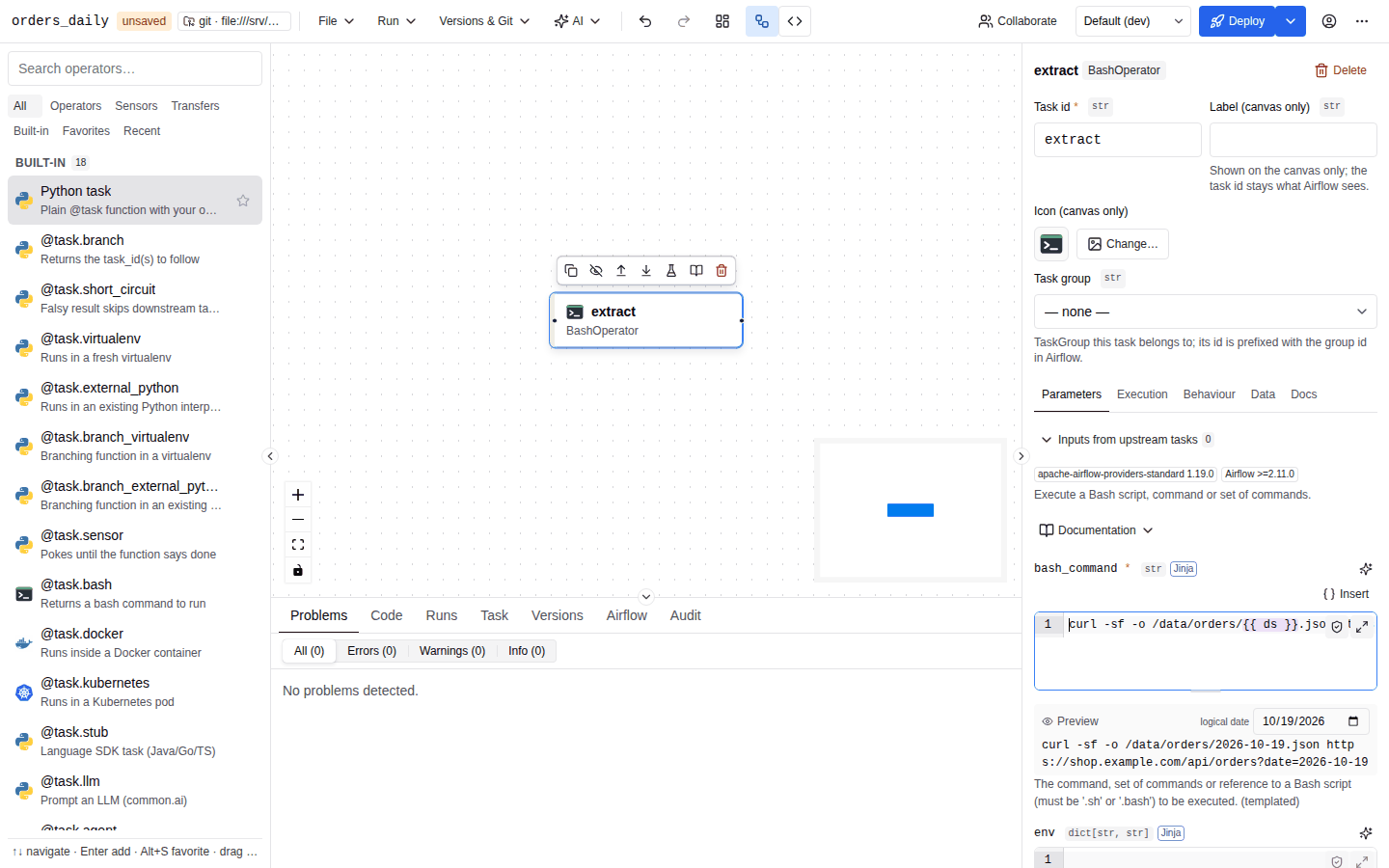
The node appears with a generated task id and is selected, so the inspector shows its parameters.
-
Set Task id (at the top of the inspector) to
extract. -
In bash_command, type:
curl -sf -o /data/orders/{{ ds }}.json https://shop.example.com/api/orders?date={{ ds }}bash_commandis a template field, so the editor is Jinja-aware: typing{{offers the context variables (ds,ds_nodash,params,var,conn, macros,ti.xcom_pull). Each parameter shows its Python type, and a red*marks required ones.
Ctrl/⌘+K opens the command palette, which can also insert nodes. The shortcuts page lists the rest.
3. Add the transform and load tasks
-
In the palette, open the Built-in tab and add Python task ("Plain @task function with your own code"). For Python tasks the first inspector tab is Code.
-
Set Task id and Function name to
transform. The function name must be a valid Python identifier. -
Replace the Function body with:
import jsonwith open(f"/data/orders/{ds}.json") as f:orders = json.load(f)return sum(o["total"] for o in orders)returnpushes the total to XCom. (This body has a deliberate mistake that step 5 fixes.) -
Search the palette for
SQLExecuteQueryOperator, add it and set its Task id toload. -
In sql, type:
INSERT INTO sales.daily_orders VALUES ('{{ ds }}', {{ ti.xcom_pull('transform') }})In a real DAG also choose the database connection in conn_id. The connection picker lists Airflow's connections, filtered by connection type, and can create one with New connection; in local mode, without an Airflow server, you type the connection id. See Connections.
Now connect the tasks: drag from the handle on the right edge of extract to the handle on the left edge of transform, then from transform to load. An edge means "runs after"; a connection that would create a cycle is refused. Press Shift+L (or Auto layout in the toolbar) to tidy the graph.
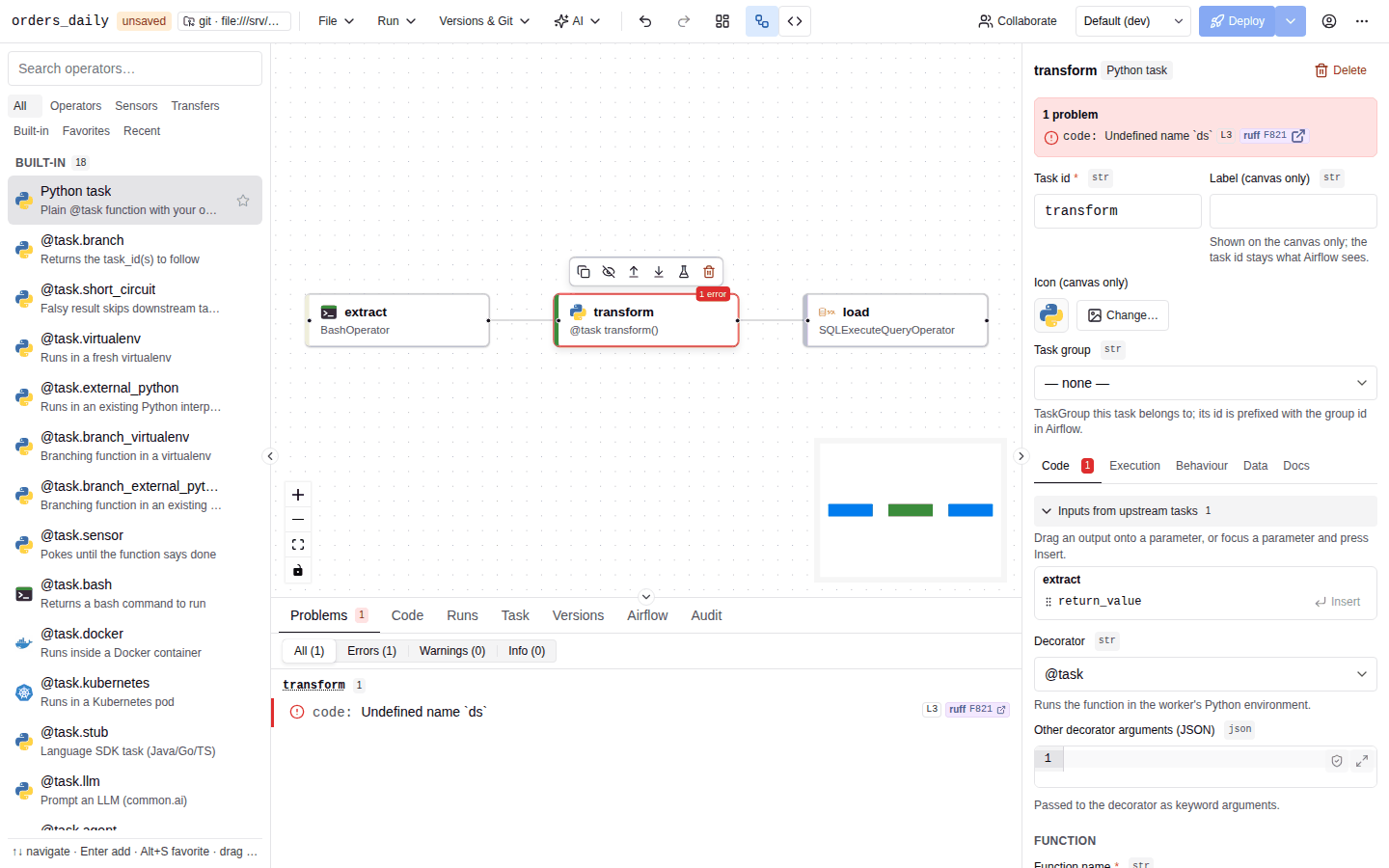
Select transform: its node already carries a red 1 error badge, and the inspector lists the problem at the top. Inputs from upstream tasks shows extract's return_value; you could drag it onto an argument to pass extract's XCom to the function (see Jinja, XCom and Python).
4. Schedule it daily
Click an empty part of the canvas to return to DAG settings and open the Schedule tab.
- Set Schedule to Preset (@daily, …) and pick
@daily("every day at midnight"). - Set Start date. A new DAG starts on 1 January of the current year (UTC). The scheduler never creates runs before it.
- Leave Catchup off unless you want a run for every missed interval between the start date and now.
- Optionally set DAG timezone to an IANA name such as
Europe/Istanbul. Start and end dates and the@dailypreset are then local to that zone (DST aware). An unknown zone is flagged ("Unknown timezone") and not applied.
Next runs previews the upcoming run times, in your local time and in UTC, computed by Airflow's timetable engine.
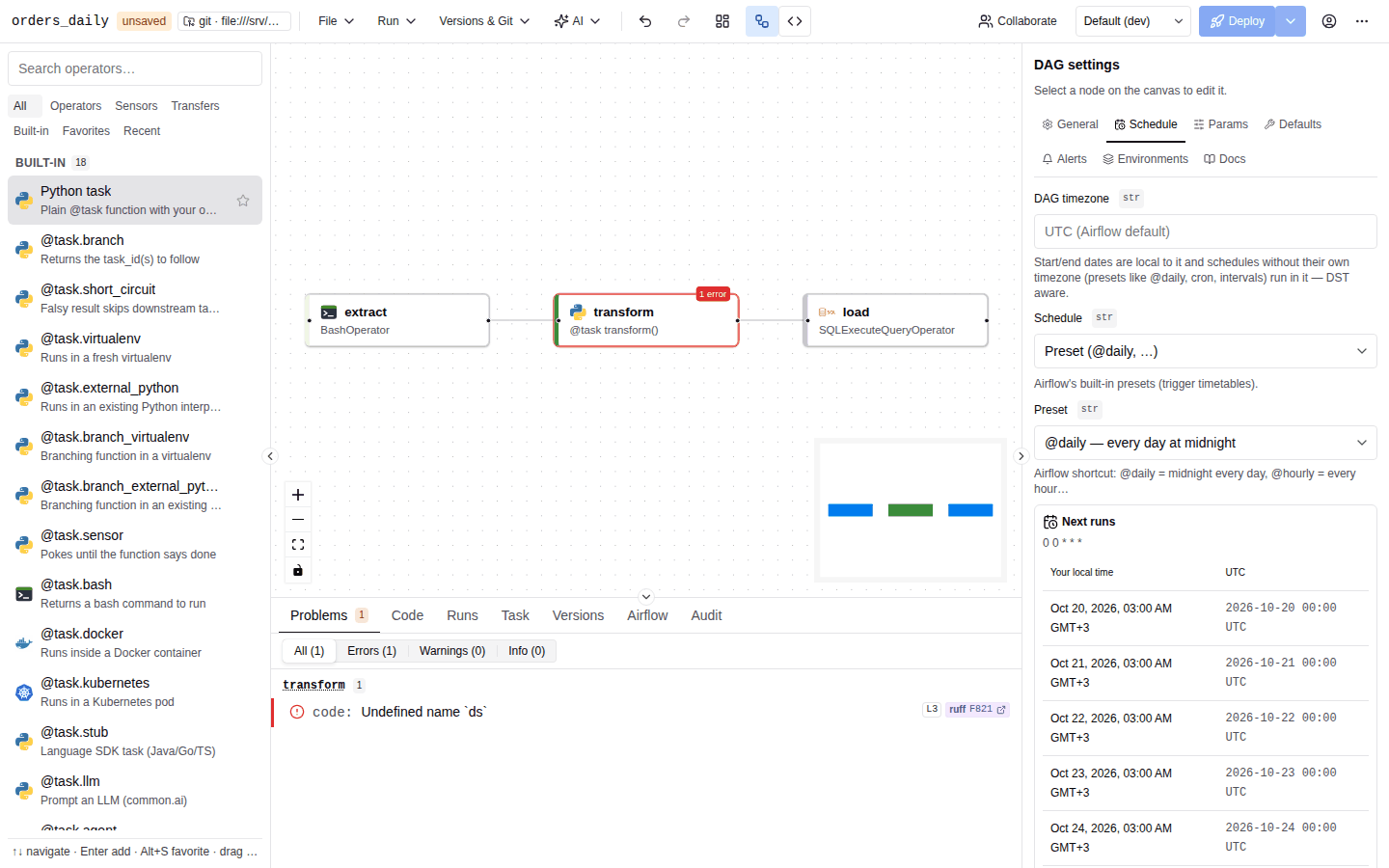
Other schedule types (cron, fixed interval, multiple crons, specific dates, assets, assets-or-time, partitioned schedules) are described in Scheduling and assets.
5. Fix the problems
AutoAir validates the spec while you edit. The Problems tab of the bottom panel (Ctrl/⌘+J toggles the panel) lists every problem grouped by task, with filters All, Errors, Warnings and Info. Clicking a problem selects the node and focuses the exact field, including fields inside nested editors.
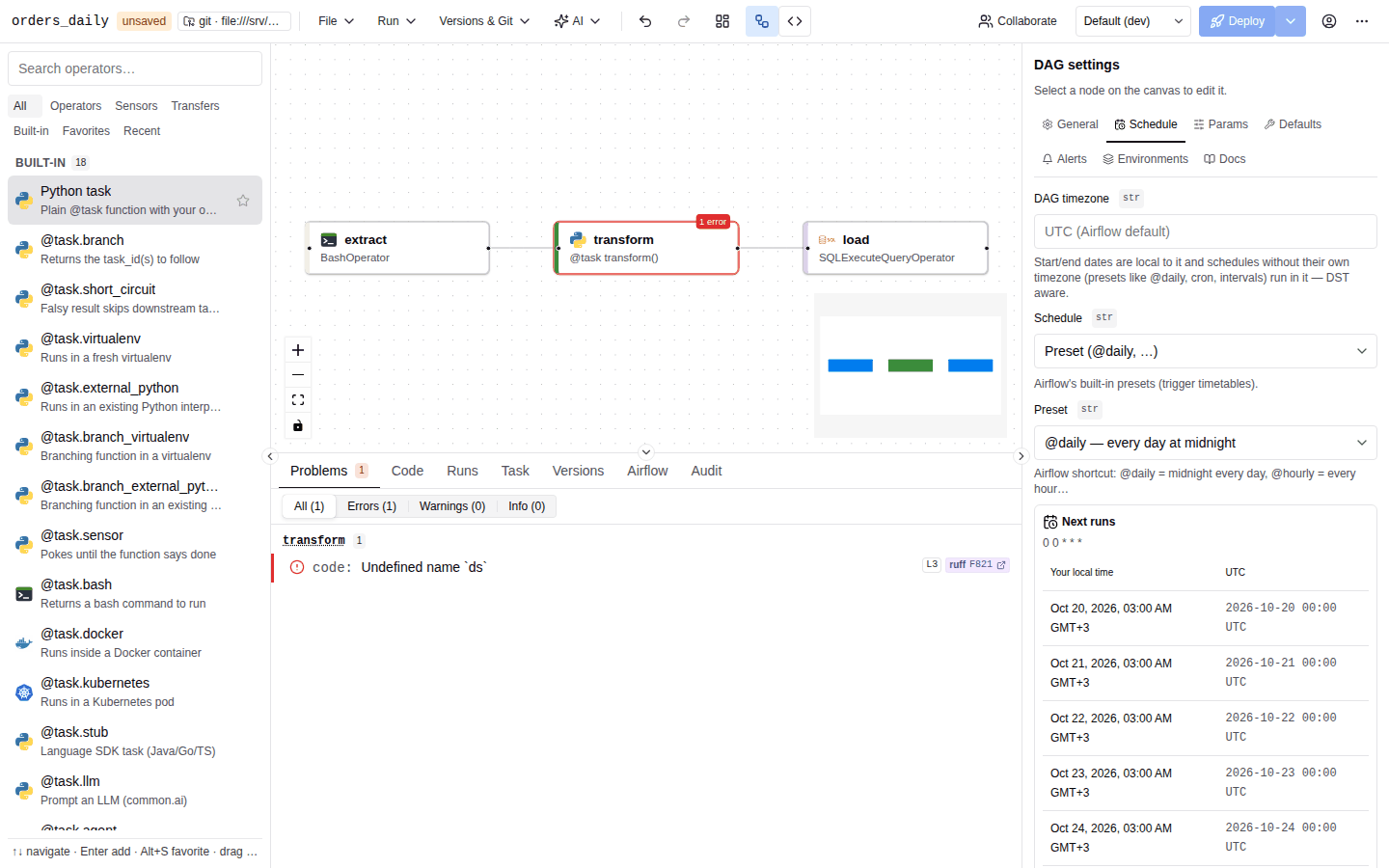
Here ruff reports F821 Undefined name 'ds': inside a TaskFlow function, ds is not a global. Click the problem to jump to the function body and read the date from the task context instead:
import json
from airflow.sdk import get_current_context

ds = get_current_context()["ds"]
with open(f"/data/orders/{ds}.json") as f:
    orders = json.load(f)
return sum(o["total"] for o in orders)
The Problems tab then shows "No problems detected." Other typical problems are:
- a required parameter that is empty, for example a
BashOperatorwithoutbash_command; - a duplicate task id;
- a Jinja error or an undeclared
params.<name>in a template; - a policy rule set by your administrator, such as a required owner or a minimum number of retries;
- a hard-coded secret (a password or token typed into a field), with a hint to use Connections or Variables.
While there are errors, the Deploy button explains "Fix 1 problem to deploy (click to see it)" and clicking it opens the Problems tab. Warnings and info items do not block a deploy. Details: Validation.
6. Preview the generated code
Open the Code tab of the bottom panel. It shows the file AutoAir will deploy, regenerated as you edit. The selector switches between Python, Airflow YAML, dag-factory and Spec JSON (the document AutoAir stores). If the spec has errors, the tab says "Fix the problems to see the generated code."
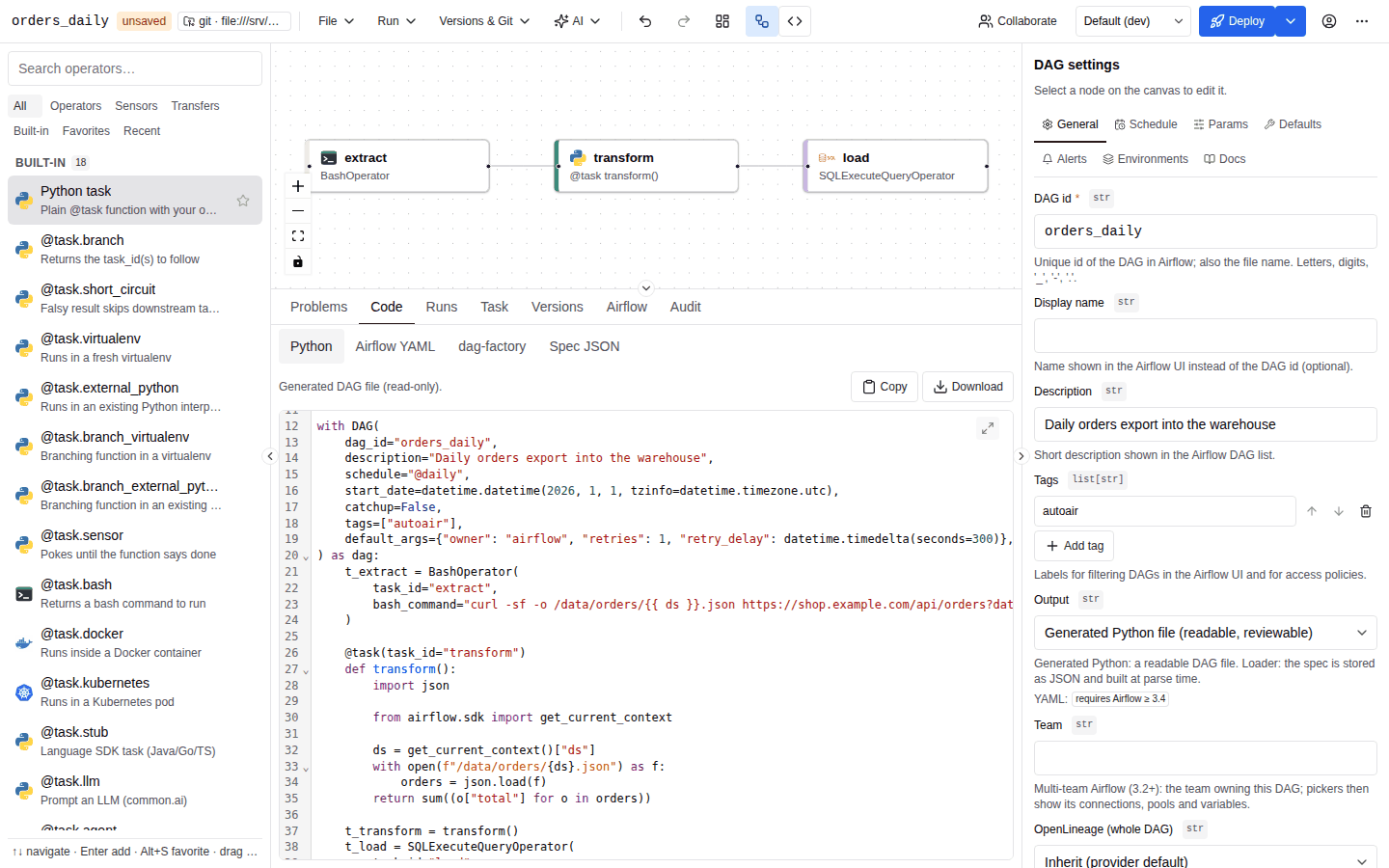
The DAG body of the generated file for this tutorial starts like this (the module docstring and imports are above it):
with DAG(
    dag_id="orders_daily",
    description="Daily orders export into the warehouse",
    schedule="@daily",
    start_date=datetime.datetime(2026, 1, 1, tzinfo=datetime.timezone.utc),
    catchup=False,
    tags=["autoair"],
    default_args={"owner": "airflow", "retries": 1, "retry_delay": datetime.timedelta(seconds=300)},
) as dag:
    t_extract = BashOperator(
        task_id="extract",
        bash_command="curl -sf -o /data/orders/{{ ds }}.json https://shop.example.com/api/orders?date={{ ds }}",
    )

    @task(task_id="transform")
    def transform():
        import json

        from airflow.sdk import get_current_context

        ds = get_current_context()["ds"]
        with open(f"/data/orders/{ds}.json") as f:
            orders = json.load(f)
        return sum((o["total"] for o in orders))

    t_transform = transform()
    t_load = SQLExecuteQueryOperator(
        task_id="load",
        sql="INSERT INTO sales.daily_orders VALUES ('{{ ds }}', {{ ti.xcom_pull('transform') }})",
    )
    t_extract >> t_transform
    t_transform >> t_load
The default arguments (owner, retries, retry_delay) come from the Defaults tab of DAG settings; a new DAG starts with one retry after 300 seconds. The imports follow the target Airflow version shown in the toolbar. Airflow YAML output does not support Python tasks, so the Airflow YAML view reports that this DAG cannot be expressed in YAML.
To edit the file directly instead, switch to code mode; applying it imports the code back into the spec. See Code mode.
7. Validate in Airflow
Live validation is static. To import the generated file in a real DagBag, choose Run → Validate in Airflow. A clean import reports Valid: "The DAG imports cleanly in Airflow (DagBag)." Import errors (a missing provider, a syntax error in a task body) are listed with their messages.
The import runs in a subprocess on the AutoAir server, so the providers your DAG uses must be installed there. In plugin mode that is Airflow's own environment. Every deploy runs the same check again unless import_check_on_deploy is off.
8. Deploy
Click Deploy in the toolbar, or press Ctrl/⌘+S. The arrow next to it opens Deploy…, a dialog that shows:
- Target: where the files go, for example
local · /opt/airflow/dags/autoairor a Git repository and branch; - Environment, when environments are configured (otherwise "No environments are configured; the base spec is deployed.");
- Message: the version or commit message ("What changed and why?"); Ctrl+Enter deploys;
- for Git targets, whether the deploy pushes or opens a pull request, and a preview of the commit and pull request text.
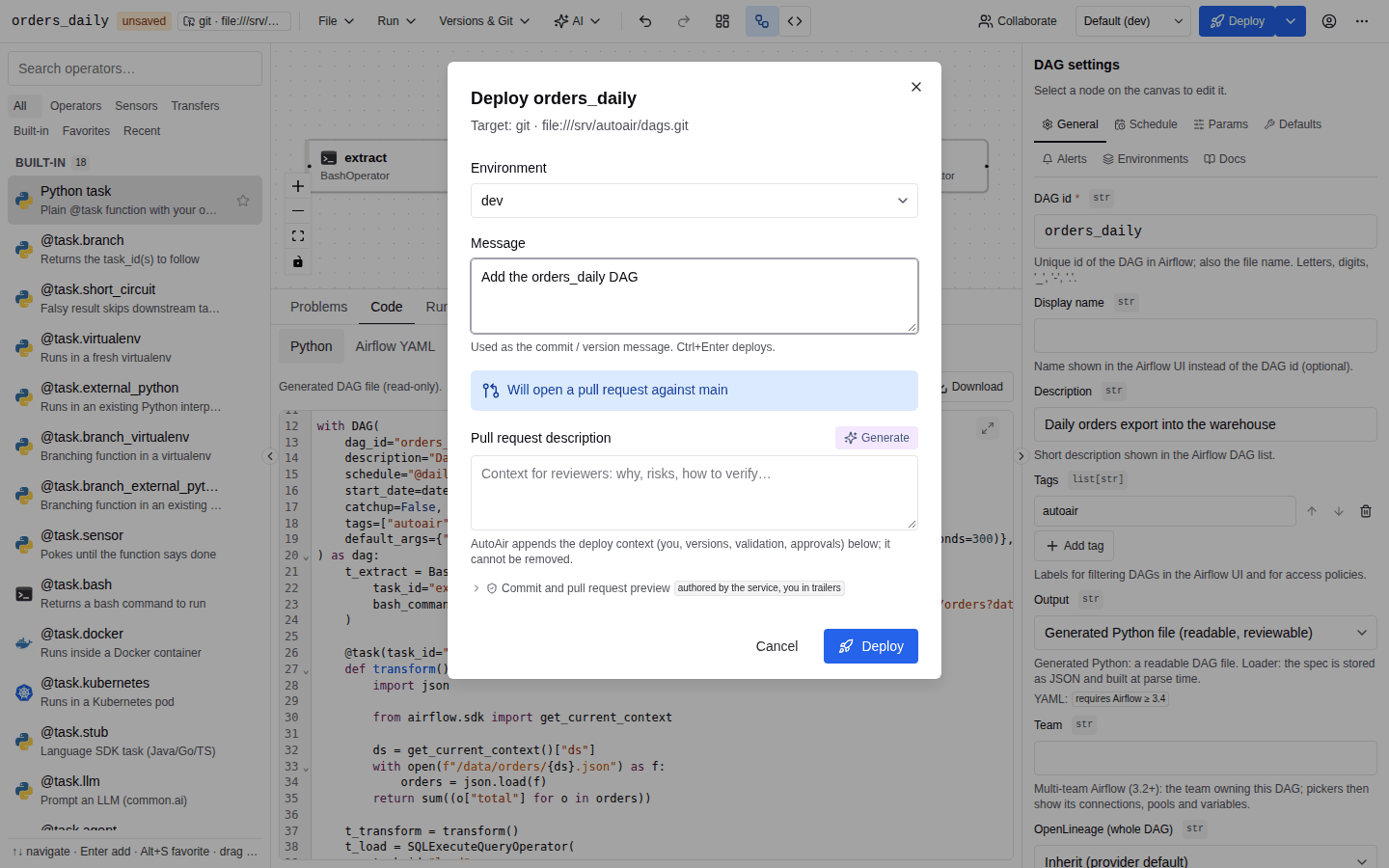
On success the toolbar shows Deployed and the status chip changes from new to deployed. With the local target, the deploy writes two files into the DAG folder (./dags in local mode, <dags_folder>/autoair by default otherwise):
| File | Content |
|---|---|
orders_daily.autoair.json | The spec. AutoAir reads it back when you reopen the DAG. |
orders_daily.py | The generated DAG file Airflow parses. |
What can go differently:
- Someone else deployed the DAG since you opened it. AutoAir uses ETags; instead of overwriting their work you get "Someone else changed this DAG" and a three-way merge dialog.
- The generated file was edited by hand. The deploy stops and reports the file as ejected; AutoAir overwrites it only when you force the deploy.
- A file with the same name was not created by AutoAir. It is never overwritten.
- Git target in pull-request mode. The deploy opens a pull request ("Pull request opened"); the DAG goes live when the pull request is merged.
- Four-eyes approvals enabled. The deploy is stored as a proposal until another reviewer approves this version.
See Deploy and Reviews and approvals.
9. Run it (plugin and standalone)
Airflow's dag-processor picks the file up on its next parse. New DAGs usually start paused (Airflow's dags_are_paused_at_creation); the toolbar chip shows the paused state and can unpause the DAG. Then:
- Choose Run → Trigger… to start a run.
- Open the Runs tab of the bottom panel and select the run. Task states are painted on the canvas.
- Select
transformand open the Task tab to read its Logs and XCom. The XCom holds the day's order total.
In local mode runs are switched off (features.runs), so these items are not available; open the deployed file in an Airflow of your own instead. See Runs.
Where to go next
- Concepts: what the spec, validation and deploy targets are.
- Operators and parameters and Jinja, XCom and Python.
- TaskFlow and loops: mapping over the transform output.
- Versions and diff: compare what you just deployed with the next change.