Keyboard shortcuts and command palette
Every builder action that has a keyboard shortcut is a registered command. The same registry feeds the keyboard dispatcher, the command palette (Ctrl+K / ⌘K) and the shortcuts sheet (?), so the three always agree.
How shortcuts are dispatched
- Mod is Ctrl on Windows and Linux and ⌘ (Command) on macOS. On macOS, Ctrl+K is not ⌘K: the other platform's modifier never matches.
- Shortcuts are ignored while you type in an input, a text area, a select box or a code editor, so Delete, the arrow keys and letters edit text there instead of the canvas.
- Shortcuts only act when focus is inside the builder or on nothing in particular. Inside Airflow, keys pressed in Airflow's own UI and in open dialogs or menus keep their normal behaviour.
- A shortcut only runs when its command is currently available. For example Ctrl+G does nothing without a selection, and Ctrl+Shift+A does nothing when AI is disabled.
- When the builder handles a key it prevents the browser's default action (for example the browser's bookmark dialog for Ctrl+D).
- Symbols such as ? are typed with Shift on most keyboard layouts; the dispatcher accepts them with or without Shift.
- Copy, cut and paste go through the browser's native clipboard events, so they work without clipboard permissions.
Global shortcuts
Each table heading below is the group the command has in the shortcuts sheet and the command palette.
General
| Command | macOS | Windows / Linux | Notes |
|---|---|---|---|
| Command palette | ⌘K | Ctrl+K | Opens the palette. Not listed inside the palette itself. |
| Insert node… | ⇧A | Shift+A | Opens the command palette in insert mode. |
| Keyboard shortcuts | ? | ? | Opens the shortcuts sheet. |
| Toggle palette | ⌘B | Ctrl+B | Shows or hides the operator palette. |
| Toggle inspector | ⌘I | Ctrl+I | Shows or hides the inspector. |
| Toggle bottom panel | ⌘J | Ctrl+J | Shows or hides the bottom panel. |
| Toggle light / dark mode | (none) | (none) | Command palette only; standalone UI only. |
Edit
| Command | macOS | Windows / Linux | Notes |
|---|---|---|---|
| Undo | ⌘Z | Ctrl+Z | Repeats while held. In a collaboration session, undoes your own edits. |
| Redo | ⌘⇧Z or ⌘Y | Ctrl+Shift+Z or Ctrl+Y | Repeats while held. |
| Copy | ⌘C | Ctrl+C | Copies the selected nodes. Ignored when text is selected on the page. |
| Cut | ⌘X | Ctrl+X | Copies, then deletes the selected nodes. |
| Paste | ⌘V | Ctrl+V | Pastes under the mouse pointer when it is over the canvas. |
| Duplicate | ⌘D | Ctrl+D | Duplicates the selection, offset by 40 px. |
| Delete selection | Del or ⌫ | Delete or Backspace | Deletes the selected nodes and dependencies. |
| Select all | ⌘A | Ctrl+A | Selects every visible node and dependency. |
| Clear selection | Esc | Esc | Not listed in the command palette. |
Canvas
| Command | macOS | Windows / Linux | Notes |
|---|---|---|---|
| Group selection | ⌘G | Ctrl+G | Wraps the selected nodes in a new task group. |
| Ungroup | ⌘⇧G | Ctrl+Shift+G | Dissolves the selected task groups. |
| Collapse / expand group | ⌥C | Alt+C | Toggles the selected task groups. |
| Add note | ⇧N | Shift+N | At the mouse pointer when it is over the canvas. |
| Auto layout | ⇧L | Shift+L | |
| Fit view | ⇧F | Shift+F | |
| Toggle snap to grid | ⇧S | Shift+S | 16 px grid. |
| Toggle minimap | ⇧M | Shift+M | |
| Move selection left / right / up / down | ← → ↑ ↓ | ← → ↑ ↓ | 1 px per press, repeats while held. Not listed in the command palette. |
| Move selection (large step) | ⇧ + arrow | Shift + arrow | 16 px per press. Not listed in the command palette. |
File
| Command | macOS | Windows / Linux | Notes |
|---|---|---|---|
| Open… | ⌘O | Ctrl+O | Opens the Open dialog. |
| Deploy | ⌘S | Ctrl+S | Deploys the DAG (or opens a pull request when that is the default). See Deploy. |
AI
| Command | macOS | Windows / Linux | Notes |
|---|---|---|---|
| Ask AI (chat) | ⌘⇧A | Ctrl+Shift+A | Opens or closes the AI chat panel. Needs AI enabled and the ai:use permission. See AI assist. |
Shortcuts in specific places
These keys are handled by a particular control, not by the global dispatcher, and are not listed in the shortcuts sheet.
| Where | Key (macOS / Windows, Linux) | Action |
|---|---|---|
| Palette search box | ↑ / ↓, Home / End | Move through the list. |
| Palette search box | Enter | Insert the highlighted item. |
| Palette search box | ⌥S / Alt+S | Add or remove the highlighted item from Favorites. |
| Command palette, insert popover | ↑ / ↓, Enter, Esc | Navigate, run or insert, close. |
| Canvas node or dependency with keyboard focus | Enter or Space | Select it. Tab moves focus between nodes. |
| Sticky note being edited | ⌘Enter / Ctrl+Enter | Save the note. |
| Sticky note being edited | Esc | Discard the edit. |
| Dependency label being edited | Enter / Esc | Save / cancel. |
| Code mode editor | ⌘Enter / Ctrl+Enter | Apply to canvas. See Code mode. |
| Markdown editor | ⌘B / Ctrl+B, ⌘I / Ctrl+I, ⌘K / Ctrl+K | Bold, italic, link. These win over the global panel shortcuts while you type in the editor. |
| Markdown editor | / | Block and inline snippets. See Markdown editor. |
| Any code editor | Ctrl+Space | Open completion. |
| Any multi-line code editor | ⌘F / Ctrl+F | Search in the editor. |
| Any multi-line code editor | Tab | Indent (instead of moving focus). |
| Code editor resize handle (focused) | ↑ / ↓ | Shrink or grow the editor by 40 px. Double-click resets the height. |
| Panel resize line (focused) | Arrow keys, Home, End | Resize by 16 px; minimum; maximum. Double-click restores the default size. |
| Definition peek (IDE language server) | Esc | Close the peek panel. |
| Problems list entry (focused) | Enter or Space | Go to the problem. |
| Deploy dialog | ⌘Enter / Ctrl+Enter | Submit. |
| AI chat input | Enter / ⇧Enter, Shift+Enter | Send / new line. |
| AI prompt dialogs | ⌘Enter / Ctrl+Enter | Submit the prompt. |
Command palette
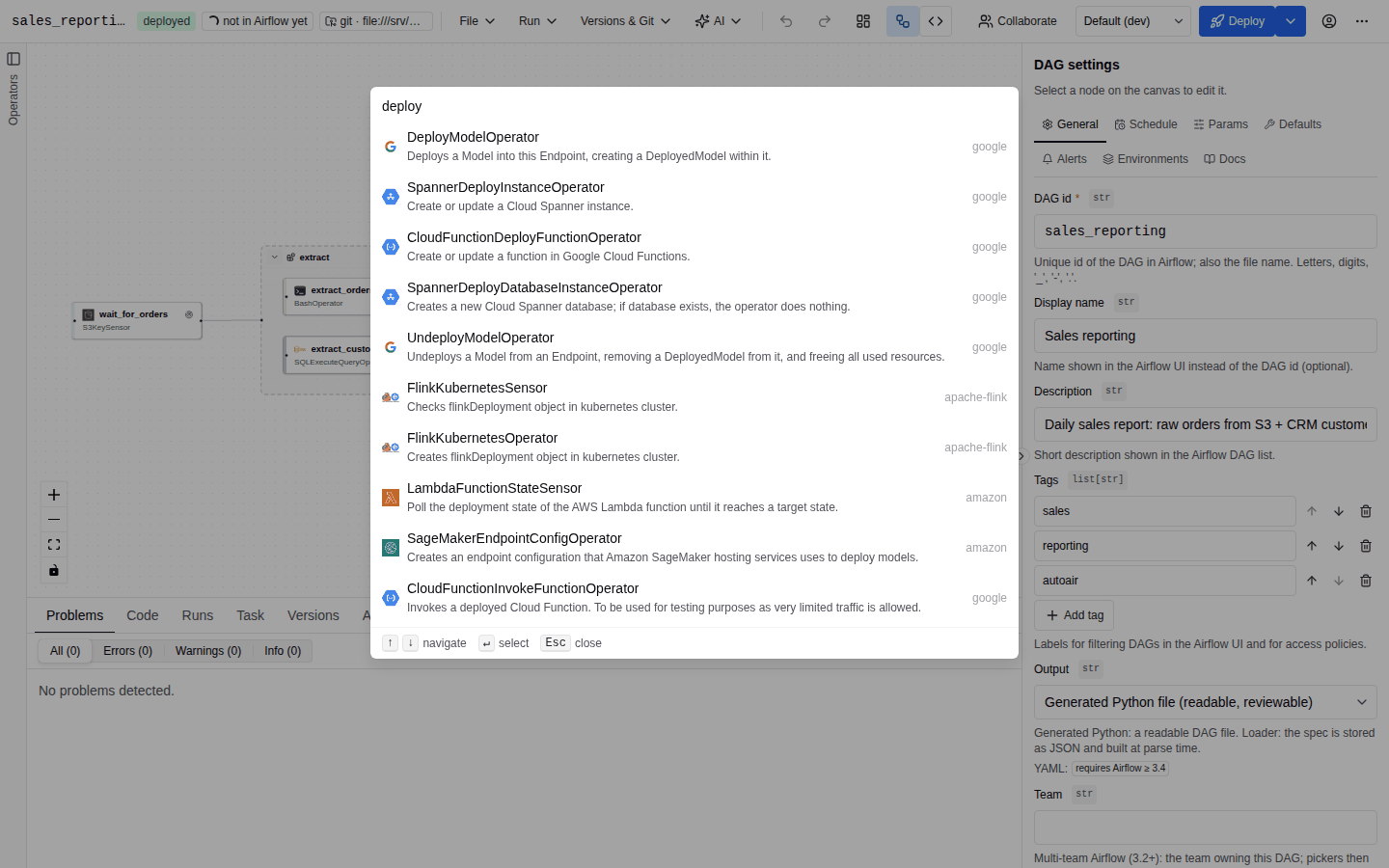
Open the command palette with Ctrl+K / ⌘K, the More (⋯) menu, or Command palette in the empty-canvas actions. It searches three kinds of entries:
| Group | Contents | Shown |
|---|---|---|
| Commands | Every available command that is not hidden, with its group and shortcut. | First while you type; last otherwise. |
| Favorites & recent, Built-in, Operator templates, Templates, Operators | The same items as the palette panel. Operators only appears once you type (at most the best matches are listed); Favorites & recent only appears before you type. | Always. |
| Go to task | Every task and task group on the canvas, searchable by task id, label, operator class or decorator. Selecting one selects it, expands collapsed groups around it and zooms to it. | Not in insert mode. |
Ranking prefers an exact title, then a title prefix, then the start of a word in the title (camelCase counts: dag run finds TriggerDagRunOperator), then a substring, then matches in secondary text, then fuzzy matches. Commands get a small boost, so typing dep lists Deploy before operators that merely contain those letters.
Insert mode opens with Shift+A or by double-clicking empty canvas. Its title is Insert node and it lists only insertable items; with a double-click, the node is placed where you clicked.
Commands in the palette
Commands appear only when they are available: most AI commands need a configured AI model and the right permissions, Trigger…, Backfill… and Promote environment… need a deployed DAG, Test selected task… needs a selected task, and so on.
| Group | Commands |
|---|---|
| General | Insert node…, Keyboard shortcuts, Toggle palette, Toggle inspector, Toggle bottom panel, Toggle light / dark mode (standalone only). |
| Edit | Undo, Redo, Copy, Cut, Paste, Duplicate, Delete selection, Select all. |
| Canvas | Group selection, Ungroup, Collapse / expand group, Add note, Auto layout, Fit view, Toggle snap to grid, Toggle minimap. |
| File | New DAG, Open…, Deploy, Deploy with message…, New from template…, Save as template…, Save selection as fragment…, Save selected task as operator template…, Import DAG…, Python file (.py), Airflow YAML DAG, dag-factory YAML, AutoAir spec (JSON) (the last four export the DAG). |
| Run | Validate in Airflow, Trigger…, Backfill…, Test selected task…, Test whole DAG…. |
| Versions & Git | History…, Deploy target…, Promote environment…. |
| AI | Generate DAG…, Edit with AI…, Explain problems, Explain this DAG, Review DAG, Scan for leaks, Optimise parameters, Fix with AI…, Write task code…, Ask AutoAir…, AI writer…, My AI model…, AI knowledge base… (AI administrators), Write docs, Ask AI (chat), Ask the admin assistant (AI administrators), Airflow upgrade assistant. |
The AI commands are described in AI assist and AI writers.
Shortcuts sheet
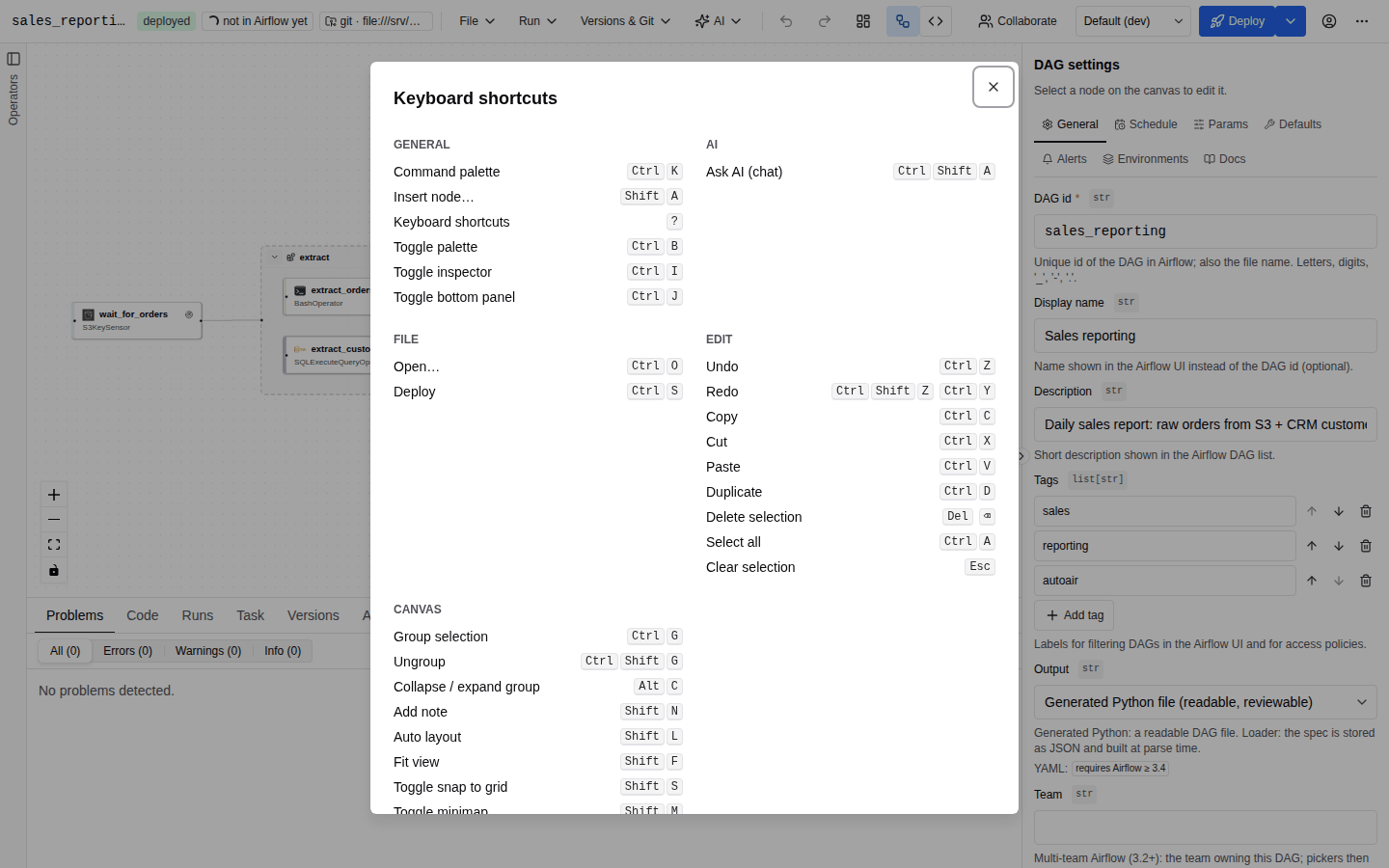
Press ? or choose Keyboard shortcuts in the More (⋯) menu to open the sheet. It lists every registered command that has a shortcut, grouped as above, with keycaps for your platform (⌘ ⇧ ⌥ ⌃ on macOS, Ctrl Shift Alt elsewhere). Hidden commands such as the nudge keys and Clear selection are included. The sheet lists a command even while it is unavailable (for example Ungroup with no group selected). Ask AI (chat) is only registered, and therefore only listed, when the AI feature (features.ai) is on.
The footer repeats the two rules that matter most: shortcuts are ignored while typing in a field or code editor, and Ctrl is ⌘ on macOS.