Code mode
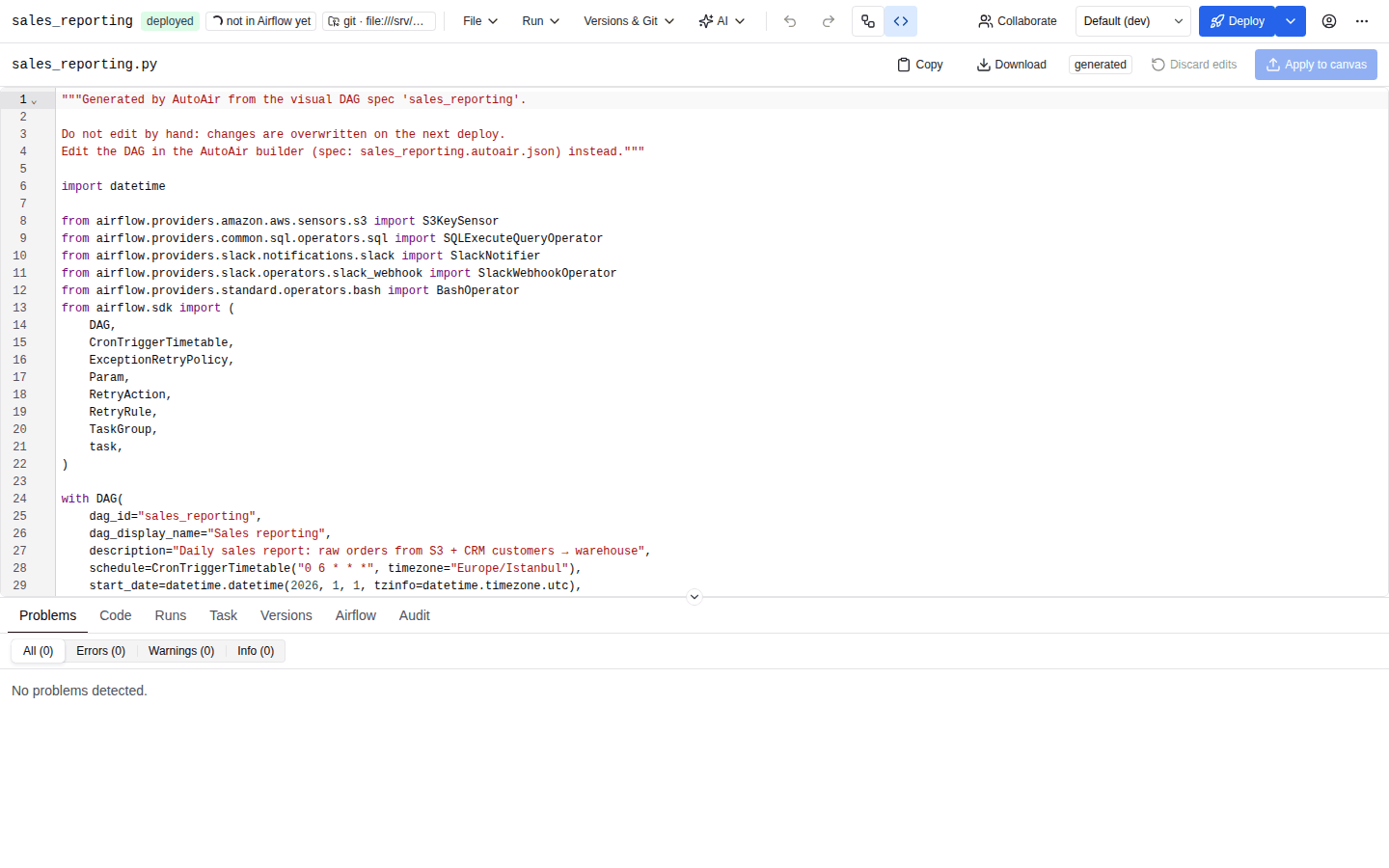
AutoAir has two kinds of DAG documents, and both can be edited as Python:
| Document | Source of truth | Edited as code |
|---|---|---|
| Visual DAG (spec-backed) | The DAG spec (<dag_id>.autoair.json). The DAG file is generated from it. | In code mode: you edit the generated file and apply it back into the spec. The canvas, the inspector and the next deploy reflect it. |
| Raw code DAG | The DAG file you write. AutoAir stores it in the spec document (raw_code) and deploys it as written. | In the raw code editor. No generated code, no spec rules, no canvas. See Raw code DAGs. |
Code you apply in code mode becomes the DAG's hand-written file: later deploys patch it instead of regenerating it (source policy Auto), and code mode then shows that file with your canvas changes patched in. See Editing existing Python DAGs.
Editor modes
Administrators choose which editors a deployment offers:
| Setting | Default | Effect |
|---|---|---|
features.visual_editor (AUTOAIR_FEATURES__VISUAL_EDITOR) | true | The canvas editor. |
features.code_editor (AUTOAIR_FEATURES__CODE_EDITOR) | true | Direct code editing: the code mode of visual DAGs, the server endpoint that imports code (POST /api/interchange/python/sync), and raw code DAGs. |
features.code_edit_inline (AUTOAIR_FEATURES__CODE_EDIT_INLINE) | false | Makes the Python view of the bottom panel's Code tab editable, with the same apply behaviour as code mode. |
| Visual editor | Code editor | Result |
|---|---|---|
| on | on | Both (the default). The toolbar shows the Visual | Code toggle; visual DAGs open in Visual. Raw code DAGs open in the raw code editor. |
| on | off | Visual only. No toggle and no code mode. New raw code DAG is hidden, raw code saves answer 404, and an existing raw code DAG opens read-only with a notice (its Deploy button is disabled). |
| off | on | Code only. No canvas, palette, insert palette, auto-layout or canvas commands. Visual DAGs open in code mode, raw code DAGs in the raw code editor. Templates and imports still create visual DAGs, which you then edit as code. |
| off | off | Not allowed. Settings validation fails at start-up with at least one of features.visual_editor and features.code_editor must be on, and the admin panel refuses the change (422). |
# Code-only builder (no canvas)
AUTOAIR_FEATURES__VISUAL_EDITOR=false
AUTOAIR_FEATURES__CODE_EDITOR=true
Admins can also switch these flags at runtime in the admin panel. The UI re-reads GET /api/meta when the window regains focus and every minute. When the mode changes, the open DAG stays open in the editor that remains, a warning explains the change, and an unapplied code draft is kept. If a runtime change would switch both editors off, the configured pair applies instead. See Feature flags and the features settings.
The Visual | Code toggle
When both editors are enabled, the toolbar shows a Visual | Code switch (Editor mode) for visual DAGs:
- Visual: edit the DAG on the canvas.
- Code: edit the generated DAG file as Python; applying imports it back into the canvas.
An orange dot on Code means there is an unapplied code draft. On a narrow toolbar the switch shows icons only.
Code mode takes the whole work area: the palette and the inspector are hidden, and the bottom panel stays available. The canvas stays loaded in the background, so your viewport and selection are unchanged when you switch back. Canvas shortcuts and the node insert palette do not act on the hidden canvas.
Who can edit code
Applying code runs it on the server to import it, so editing needs all of:
- the
spec:writepermission; - the
code:executepermission; - Python code allowed on the server (
allow_python_codeandfeatures.python_code).
Without them, code mode shows the generated file read-only with a read-only badge. Copy and Download are always available. See IAM.
How sync works
- The generated code. While you have no draft, the editor shows the code generated from the current DAG. It updates as the DAG changes. If the DAG is temporarily invalid, the editor keeps the last generated code; if there is none yet it shows Generating the code… or the reason it cannot be generated.
- A draft starts. Your first keystroke starts a draft. The status badge changes from generated to edited. Typing the text back to exactly the generated code ends the draft.
- Automatic check. About 1.2 seconds after you stop typing, the draft is sent to the server and imported without changing anything (
POST /api/interchange/python/sync). The badge shows checking…, then either ready: +N −N ~N (nodes added, removed and changed) or Fix N problems to apply. Check now re-runs the check. The panel on the right lists the problems and Applying will change, a summary of the differences against the current DAG. - Apply. Apply to canvas (or Ctrl+Enter / ⌘Enter in the editor) replaces the DAG with the imported version as one undoable step. A notification reports Code applied to the canvas with the counts and an Undo action. The draft ends.
- Discard. Discard edits asks for confirmation and returns to the generated code.
The server import works in two stages:
- The code is parsed. A syntax error is reported with its line and column and nothing is executed.
- The file is imported with Airflow's
DagBagin an isolated subprocess, with AutoAir's secrets removed from its environment. The resulting DAG objects are converted back into a spec. Import errors are reported at the line of the last traceback frame in your file.
Limits that apply to the check: the source must be no larger than interchange.max_source_chars (default 2,000,000 characters) and the import must finish within python_import_timeout (default 90 seconds), otherwise the check fails with import timed out after 90s.
If the file defines several DAGs, the one with the current DAG id is used and the others are ignored with a warning; if none matches, the first one is used, also with a warning. A file that defines no DAG fails with no DAG is defined in the code.
Warnings do not block an apply; errors do. A failed request (network error, missing permission) shows check failed and the apply is refused with Cannot apply the code.
Unapplied drafts
A draft lives in the browser tab. Reloading or closing the page while a draft exists asks for confirmation; an unapplied draft is lost if you continue.
What round-trips
AutoAir matches the imported tasks and task groups with the current ones by task id and group id, and carries over everything the Python file cannot express. An apply therefore only changes what the code changed.
Kept from the current DAG (never read from the code): canvas positions and sizes, canvas labels, node icons, operator template links, internal node ids, sticky notes, and the AutoAir-only DAG fields output mode, team and environment overlays.
Read from the code:
| Area | Imported |
|---|---|
| Operators | Class path and the constructor arguments the code passes. Arguments left at their default, and values that only come from default_args, are not added (a plain BashOperator gets no skip_on_exit_code). Values can be JSON, timedelta, datetime, XCom references (XComArg, task.output, task.output["key"]) and scripts written in the builder (see below). |
| TaskFlow tasks | @task and the decorators branch, short_circuit, virtualenv, external_python, branch_virtualenv, branch_external_python, sensor, bash, docker and kubernetes: the function name, body (docstring included), bound arguments, unbound parameters and multiple_outputs. |
| Common task settings | retries, pool, pool_slots, queue, owner, doc_md, priority_weight, weight_rule, task_display_name, max_active_tis_per_dagrun, depends_on_past, trigger_rule, setup and teardown, asset outlets. Values equal to the DAG's default_args or to Airflow's defaults are left unset. |
| Structure | Task groups (with tooltip and prefix_group_id, nested groups) and dependencies. |
| Dynamic task mapping | .partial(...).expand(...) and .partial(...).expand_kwargs(...) of operators and TaskFlow tasks: the task keeps its operator (not MappedOperator), the partial() arguments become its parameters and the expand arguments (lists or XCom references) or the expand_kwargs input become its mapping, with map_index_template. |
| Schedule | None, presets (@hourly, @daily, @weekly, @monthly, @quarterly, @yearly; @annually becomes @yearly, also as CronTriggerTimetable("@daily", timezone=…) in the DAG time zone), @once, @continuous, cron (CronTriggerTimetable and CronDataIntervalTimetable, with time zone), intervals (DeltaTriggerTimetable, DeltaDataIntervalTimetable), MultipleCronTriggerTimetable, and asset conditions (assets, aliases, & / | combinations). |
| DAG settings | dag_id, display name, description, doc_md, catchup, tags, max_active_runs, max_active_tasks, time zone, start and end dates, params, and default_args (owner, retries, depends_on_past, email, email_on_failure, pool, queue, retry_delay, execution_timeout). |
What does not round-trip
The importer reports what it drops as warnings in the sync panel. Check them before you apply.
| Construct in the code | Result after apply |
|---|---|
Mapping over transformed XCom (.map(), .zip(), .concat()) | The task is imported without mapping, with a warning naming the argument (mapped argument '…' cannot be imported; the task is imported without mapping (re-create the mapping in the builder)). Its partial() arguments are kept. |
Callables passed to operators (python_callable=my_fn, on_failure_callback=…) | Dropped with a warning (callable parameter '…' dropped). Python references and inline functions written in the builder are therefore lost if you apply the generated code back. Re-enter them in the inspector. |
| Values of other types | Dropped with a warning (value of type … dropped). |
| Timetables not listed above (events, partitioned, asset-and-time, asset-or-time, custom) | Imported without a schedule (warning: timetable … is not supported; imported without schedule). |
| DAG callbacks, deadline alerts | Not imported (warnings DAG callbacks are not imported, deadline alerts are not imported). |
Task-level retry_delay, execution_timeout, retry_exponential_backoff, callbacks, retry policies, executor, executor_config, inlets, OpenLineage switches | Not read from the code: the task's values are reset. |
Decorator arguments (@task.virtualenv(requirements=…), @task.docker(image=…)) | Not read from the code. |
Dependency labels (Label(...)) | Not read from the code: labels are removed. |
Task loops, @result, @task.stub, the loop context | Not read from the code. |
DAG fields dagrun_timeout, is_paused_upon_creation, fail_fast, max_consecutive_failed_dag_runs, owner_links, render_template_as_native_obj, rerun_with_latest_version | Not read from the code. |
| DAG params | Only type, title, description, description_md, section, format, enum, values_display, examples, minimum and maximum are kept; length limits, pattern, items and const are dropped. |
| Extension (custom) nodes | Imported as the operators their handler generated. |
| Code outside the DAG (helper functions, module constants, comments) | Not kept. Only what ends up in the DAG objects is imported. |
Two builder-only constructs are recognised in the generated code and restored, so applying the generated code again changes nothing:
- Scripts written in the builder (a script file used as a parameter value, for example a shell script for
bash_command): the generated DAG writes the script to a content-addressed temp file and passes its path. Code mode recognises that path and restores the script (name, content and interpreter), not the path. A path that does not point to a script written by the generated DAG stays a plain string. - Sticky notes with Include in DAG docs: codegen appends the note text to
doc_md. The notes stay on the canvas, so their text is removed from the importeddoc_mdand is not duplicated on the next apply.
A successful apply is one undoable step, so Ctrl+Z / ⌘Z restores the previous DAG completely if the result is not what you wanted.
Do not use code mode as a lossless converter. A successful apply means the code imported cleanly, not that every builder setting survived. Review the Applying will change summary and the warnings, then the canvas and the Problems tab, before you deploy.
Conflicts
A draft starts from the generated code of a moment in time. If the DAG changes in the visual editor afterwards (in another view, by an AI proposal or by a collaborator), code mode shows a canvas changed badge and the message:
The DAG was changed in the visual editor after you started editing the code. Applying replaces those changes; reload to start from the current code.
You then have two options:
- Reload generated code discards your draft and starts again from the current code.
- Apply to canvas imports your draft as it is, which overwrites the newer visual changes for everything the code expresses. Undo restores them.
Deploy conflicts (another editor deployed a newer version) are handled by the deploy flow. See Deploy.
The Code tab
The bottom panel's Code tab shows the generated output in four views:
| View | Contents |
|---|---|
| Python | The generated DAG file (read-only), or editable with Apply to canvas when features.code_edit_inline is on and you can edit code. Problems from the generator are listed above the editor. The Preview selector shows the file of an environment, read-only (see Environment preview). For a raw code DAG this view shows the raw code. |
| Airflow YAML | The Airflow YAML DAG (labelled with the target Airflow version). It is editable: Apply YAML to canvas imports the YAML as one undoable step, keeping positions of matching nodes and laying out new ones; Regenerate from canvas discards the edit. |
| dag-factory | A one-way export for teams using astronomer/dag-factory. |
| Spec JSON | The document AutoAir stores and deploys. |
Each view has Copy and Download. Code mode itself (the full-screen editor) also has Copy and Download for <dag_id>.py. Raw code DAGs have no Airflow YAML or dag-factory view.
Environment preview
The code you edit is always the base DAG. To see the file an environment gets, choose the environment in the Preview selector of the code mode header or of the Code tab's Python view (Preview: base (editable) is the code you edit). AutoAir renders the file with that environment's overlay and connection and variable mapping applied (POST /api/codegen?environment=<env>) and shows it read-only, labelled Preview: <env> (read-only).
The preview cannot be edited or applied. Applying code rendered for one environment would copy that environment's values into the base definition, and so into every environment. Edit the base code, or the environment's overlay in the DAG settings.
Raw code DAGs have no preview selector: environment overlays and mapping do not change their file. See Environments.
Raw code DAGs
A raw code DAG is a DAG file you write yourself, in free-form Python, independent of AutoAir's code generator and spec rules. It is a document type next to visual DAGs: stored, versioned, reviewed and deployed the same way.
Create one
- File → New raw code DAG (or Write a raw code DAG on an empty canvas) opens the raw code editor with a starter file that already uses the new DAG id. If you change the id, change it in the inspector's raw DAG settings and in the code.
- File → Import → Python file has Open as raw code DAG: the file is kept as it is and nothing is executed. The DAG id is taken from the first literal
dag_id="…"orDAG("…")in the file, else from the file name. - For a DAG that exists in Airflow but is not managed by AutoAir, the import dialog offers Open as raw code DAG with the original file.
- In code mode of a visual DAG, Convert to raw code… turns it into a raw code DAG (see Convert a visual DAG).
- Agents use the MCP tool
save_raw_dag_code(see MCP).
The toolbar shows a Raw code badge next to the DAG id. In File → Open… every DAG carries a type badge (Visual or Raw code) and the list can be filtered by type. The inspector shows the raw DAG settings: DAG id, display name, description, tags and team. Schedule, default arguments, params and the other spec fields are written in the code instead.
Who can use them
Raw code is arbitrary Python, so saving a raw code DAG needs:
- the
spec:writepermission, plusdeploywhen the save goes live, as for any DAG; - the
code:rawpermission (granted to the built-in Author and Admin roles; see IAM); features.code_editorandfeatures.python_code(andallow_python_code). While either feature is off, saving a raw code DAG (PUT /api/specs/<dag_id>, the deploy preview) answers404.
Deploying an approved proposal and promoting between environments do not check code:raw again; the author was checked when the version was proposed or saved. Their validation still refuses raw code while Python code is off.
Validation
The live checks and every deploy validate a raw code DAG with these checks instead of the spec rules. Problems carry the line (and column) in your file: they are underlined in the editor and listed in the Problems tab, where clicking one moves the cursor to its line.
| Check | Severity |
|---|---|
Syntax (ast). A syntax error stops the other checks. | error |
ruff with the editor's lint rules (editor.python_lint_select, editor.python_lint_ignore and their _extra lists). Undefined names and syntax-level rules (F82x, E9) are errors, other rules warnings. | error or warning |
Hard-coded secrets: lines matching policy.secret_assignment_pattern. | warning |
Python code allowed: allow_python_code and features.python_code. | error |
Privileged operators (policy.privileged_operators, for example BashOperator) while allow_privileged_operators is false, and forbidden_operators. Found by a static scan of imports and calls; Airflow re-exports with the same class name and @task.bash count too. | error |
DAG id rules: dag_id_prefix, policy.dag_id_pattern, the team prefix. | error |
The code does not define a DAG with the document's DAG id literally (DAG("…"), DAG(dag_id="…"), @dag). | warning |
OPA (policy.opa_url): the input carries the spec, including raw_code, and context.document_type is raw. | per OPA decision |
The DagBag import check (import_check_on_deploy, for users with code:execute while iam.import_check_requires_code_execute is on). It also confirms the file defines the DAG. Runs only when no other error was found. | error |
Spec rules do not apply: graph and catalog checks, operator templates, Jinja checks and policy.rules (which address spec nodes and fields). require_owner, require_description, min_retries, required_tags and max_tasks are not checked either. The operator scan is static and best effort: code that builds class paths at run time escapes it, which is why raw code needs its own permission.
Deploy, versions and reviews
A raw code DAG goes through the same deploy pipeline as a visual DAG: the same deploy targets (local folder, object storage, git push or pull request), the per-deploy git token, the deploy context in commit messages and pull requests, four-eyes approvals and deploy proposals, history, versions and diff (the diff shows the change of raw_code), promotion, delete and the audit trail.
The deployed <dag_id>.py is your code as written; AutoAir never reformats it. Deploy targets only overwrite files that carry AutoAir's marker, so when the first 400 characters of your code do not contain Generated by AutoAir, AutoAir prepends one line:
# Generated by AutoAir from the raw code DAG '<dag_id>'. Edit it in AutoAir.
Environment overlays and the connection and variable mapping do not apply: every environment gets the same file. Read environment-specific values at run time from Airflow Variables, Connections or environment variables.
With collaboration on, the raw code is shared as text, so several people can type in the same file.
Convert a visual DAG to raw code
With both editors on, the code mode of a visual DAG has Convert to raw code… (needs code:raw). The conversion is one way: the canvas, the node settings and the sync between code and spec are dropped, and the current generated code, or your unapplied draft, becomes the raw file. The confirmation dialog says so before anything changes. The conversion is one undoable step until you deploy; after the deploy, the stored DAG is a raw code DAG.
Open a raw code DAG in the visual builder
When both editors are on, the raw code editor has Open in visual builder. It imports the file with the same Python importer as code mode (POST /api/interchange/python/sync, which needs spec:write, code:execute and python_code), then shows what the import produced and the changes for review. Accepting replaces the document with a visual DAG as one undoable step.
The conversion is best effort: everything listed in What does not round-trip is lost, as is code outside the DAG objects (helper functions, module constants, comments). Review the warnings before you accept.
Editor features in code mode
The code mode editor is the same CodeMirror editor as the field editors: Python highlighting, completion, hover documentation and signature help for the whole module, search, and the language server when features.ide_language_server is on. Problems from the sync check are shown in the gutter and underlined at their line. See Field editors.