Field editors
Every field that holds code or long text uses the same CodeMirror 6 editor: Python task bodies, inline functions and scripts, bash commands, SQL, YAML, JSON, Jinja templates, Markdown documentation, the code mode file and the file of a raw code DAG. Which of the visual and code editors a deployment offers is described in Editor modes.
Editor basics
| Feature | Details |
|---|---|
| Languages | Python, bash, SQL, YAML, JSON, Markdown, Jinja, Go, Java, JavaScript, TypeScript and plain text. Script fields pick the language from the file extension (.py, .sh, .sql, .hql, .yaml, .json, .md, .go, .java, .js, .ts). |
| Jinja | {{ … }}, {% … %} and {# … #} are highlighted inside any language, and templated fields get Airflow-aware completion. See Jinja, XCom and Python. |
| Resizing | Drag the handle under a multi-line editor, or focus it and press ↑ / ↓ (40 px per step). Double-click the handle to reset the height. |
| Large editor | The Open … in a large editor button in the top-right corner opens the field in a full-window dialog. Templated fields show the Insert menu and the rendered preview there. |
| Search, indentation | Ctrl+F / ⌘F searches inside multi-line editors. Tab and Enter indent with the indentation the text already uses (spaces or tabs, detected from the first indented lines). Without indented lines yet, Python and Java use 4 spaces, Go a tab, and other languages 2 spaces. This applies to task bodies, inline functions, scripts and the code mode file. |
| Paste | A task body pasted with its function's indentation is dedented automatically. |
| Loading | The editor's code is loaded the first time a code field appears; until then the field is a plain text box. You can start typing straight away: the text, the cursor position and the focus carry over to the editor when it arrives. |
| Theme | The editor follows light and dark mode. |
IntelliSense (built in)
Python and bash editors have language services that need no extra installation. This is the default; it is what you get while features.ide_language_server is off or the language server is not installed.
Python
Completion, hover documentation and signature help are computed on the AutoAir server with jedi. The analysis is static (nothing is executed) and runs against the server's Python environment, where Airflow and the provider packages are installed, so airflow.sdk, hooks and operators complete with their real documentation.
- Task bodies. The body you write is analysed wrapped in the same function signature the code generator emits. Function arguments, bound arguments, mapped arguments, extra parameters and the
loopcontext of a task loop resolve, and so do the names of Airflow's task context, with their types:ti,task_instance,dag_run,params,ds,ds_nodash,ts,ts_nodash,ts_nodash_with_tz,logical_date,data_interval_start,data_interval_end,prev_data_interval_start_success,prev_data_interval_end_success,prev_start_date_success,prev_end_date_success,run_id,task_instance_key_str,try_number,test_mode,templates_dict,outlet_events,triggering_asset_events,inlets,outlets,connandvar. - Whole modules. Inline functions, embedded
.pyscripts, the code mode file and raw code DAG files are analysed as complete modules. - Completion appears as you type an identifier or after a dot; Ctrl+Space opens it explicitly. Items keep the server's ranking: keywords and prefix matches first.
- Hover over an identifier shows its signature and docstring.
- Signature help appears while you type the arguments of a call, with the current parameter highlighted.
Diagnostics come from server validation rather than from the editor: syntax errors and ruff findings in a task body appear in the Problems panel and are underlined in the editor at their line. See Validation.
Limits are set in the editor settings: editor.max_source_chars (largest code accepted, default 200,000 characters), editor.max_completions (items per request, default 100) and editor.max_doc_chars (docstring characters shown, default 4,000).
Bash
Bash editors (for example bash_command and @task.bash bodies) offer completion for shell keywords, builtins, common command-line tools, Airflow's task environment variables, the variables the script itself declares, and control-flow snippets. Diagnostics come from ShellCheck on the server when it is installed (pip install 'autoair[shell]'); without ShellCheck the editor shows none. Jinja expressions are masked before ShellCheck runs.
IDE language server
With features.ide_language_server on, Python and bash editors talk to a real language server running on the AutoAir host. It replaces the built-in services and adds:
- completion with resolved documentation, hover and signature help;
- live diagnostics (for example an undefined name), mapped back into the task body;
- F12: go to definition. Definitions in library files (Airflow, providers, the standard library) open read-only in a peek panel; Escape closes it;
- Shift+F12: find references;
- F2: rename;
- Shift+Alt+F: format.
Task bodies are analysed wrapped in their generated function, like the built-in services, so arguments and Airflow's context resolve.
Servers
| Language | Server | Install | Setting |
|---|---|---|---|
| Python | basedpyright (default) | pip install 'autoair[lsp-pyright]' (or pip install basedpyright; it bundles Node.js) | lsp.python_server=basedpyright, command lsp.basedpyright_command (default ["basedpyright-langserver", "--stdio"]) |
| Python | python-lsp-server with ruff | pip install 'autoair[lsp]' | lsp.python_server=pylsp, command lsp.pylsp_command (default ["pylsp"]) |
| Bash | bash-language-server | npm i -g bash-language-server | lsp.bash_command (default ["bash-language-server", "start"]) |
The commands are looked up on PATH and next to the running Python interpreter. When a server is not installed, GET /api/lsp/servers reports it unavailable and the editor keeps the built-in services for that language; nothing fails.
Configuration
AUTOAIR_FEATURES__IDE_LANGUAGE_SERVER=true
AUTOAIR_LSP__PYTHON_SERVER=basedpyright      # or pylsp
AUTOAIR_LSP__MAX_SESSIONS=16                  # language-server processes alive at once
AUTOAIR_LSP__MAX_SESSIONS_PER_USER=4
AUTOAIR_LSP__IDLE_TIMEOUT=600                 # seconds without a message before a session closes
AUTOAIR_LSP__START_TIMEOUT=30
AUTOAIR_LSP__MEMORY_LIMIT_MB=2048             # RLIMIT_AS per process; empty for no limit
AUTOAIR_LSP__CPU_LIMIT_SECONDS=3600           # RLIMIT_CPU per process; empty for no limit
AUTOAIR_LSP__MAX_MESSAGE_BYTES=8388608
Each browser page opens one WebSocket per language at /api/lsp/ws/{language}, authorised by a short-lived ticket from POST /api/lsp/session. The server starts one language-server process per session in a fresh temporary workspace and kills it, with its process group, when the WebSocket closes, after lsp.idle_timeout, or when it exceeds its resource limits. The editor reconnects when you type again after an idle timeout.
- A reverse proxy in front of AutoAir must forward WebSocket upgrades for
/api/lsp/ws/. - Tickets are signed with the collaboration secret. When standalone runs several replicas, set
AUTOAIR_COLLAB_SECRETto the same value on all of them. See Scaling. - Each session is a real process. Size
lsp.max_sessionsand the memory limit to the host.
See the lsp settings.
Validate button
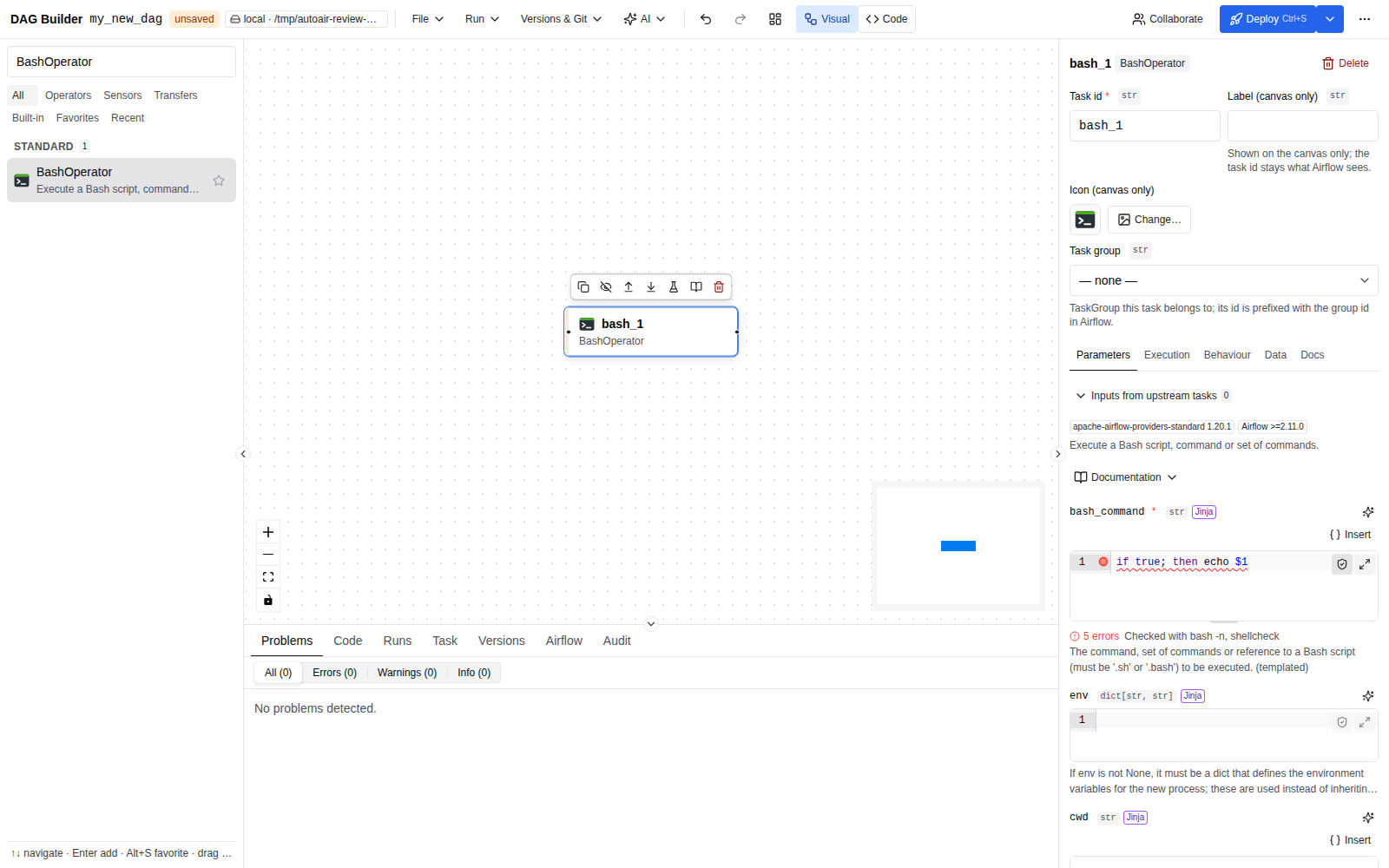
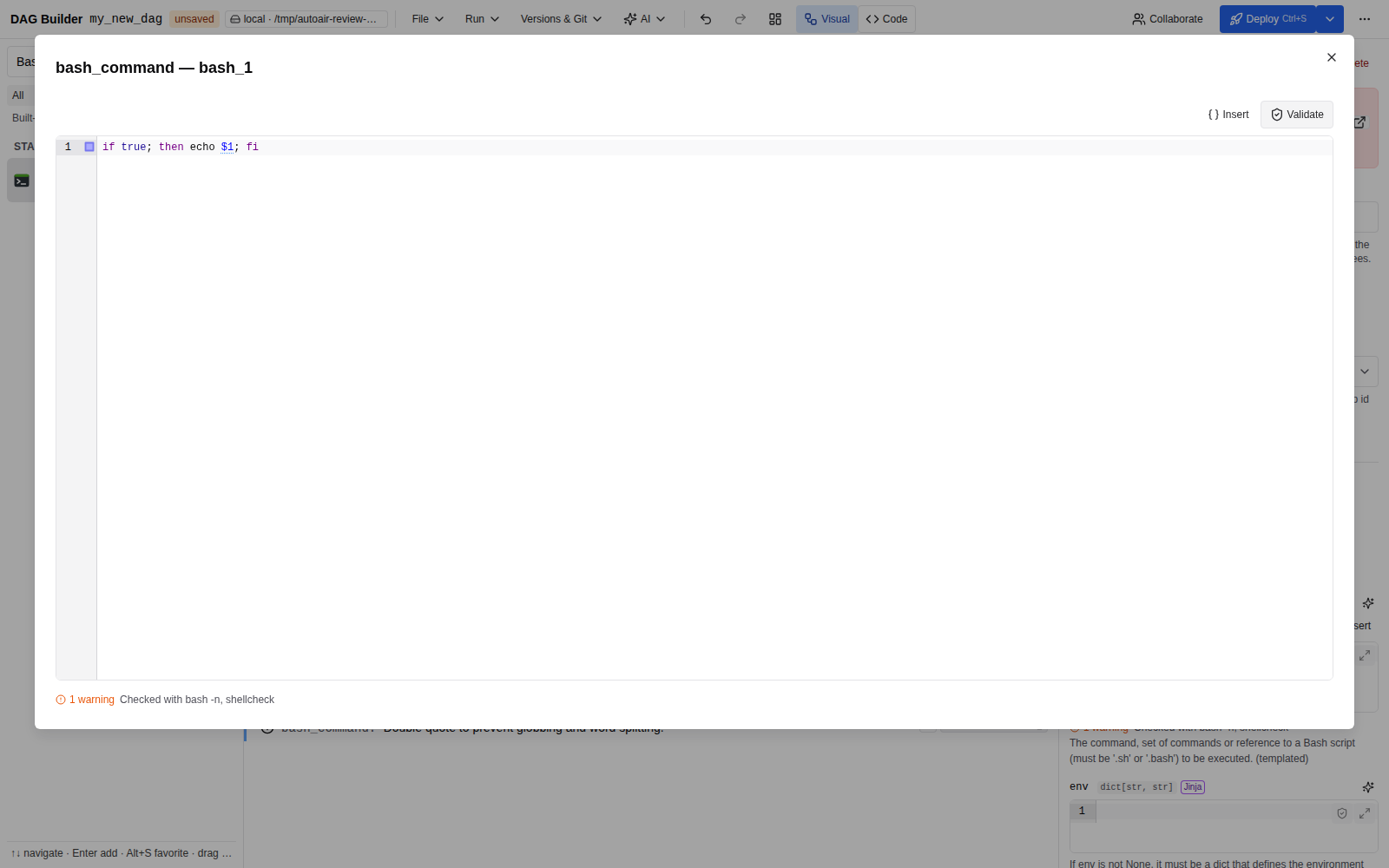
Multi-line code fields have a Validate button (shield icon) next to the large-editor button; the large editor and the Markdown toolbar show it as a labelled Validate button. It sends the field's code to POST /api/lsp/validate, which checks it with the best tool installed on the server. Nothing is executed.
| Language | Checks |
|---|---|
| Python | ast syntax check, then ruff with the editor's lint rules (editor.python_lint_select, editor.python_lint_ignore and their _extra lists). Task bodies are checked wrapped in a function. |
| JSON | Strict parse with line and column. |
| YAML | yaml.safe_load_all. |
| Bash, sh | bash -n / sh -n syntax check, then ShellCheck (Jinja masked). |
| SQL | sqlglot, when installed (pip install sqlglot). |
| Go | gofmt -e. |
| Java | javac, stopped after parsing, in a temporary directory. |
| JavaScript, TypeScript | tsc syntax diagnostics; esbuild when tsc is missing. |
| Markdown | Built-in checks (unclosed code fences). |
Jinja-only and plain-text fields have no validator and no button.
The result appears on one line under the editor and as underlines and gutter markers in the editor:
- No problems found, or N errors · M warnings;
- Checked with …: the tools that ran;
- Not available: …: tools that are not installed on the server or failed, with the reason in the tooltip (for example
shellcheck is not installed on the server, orpip install sqlglot to validate SQL); - No validator is installed on the server for this language when no tool could check the code. This is not a pass.
The result belongs to the text it was computed for. As soon as you edit the field it disappears until you validate again. A request failure shows Validation failed: ….
External tools run as subprocesses in a temporary directory, with AutoAir's secrets removed from the environment and a timeout of editor.validate_timeout seconds (default 15). To use a tool that is not on PATH, set its command explicitly:
AUTOAIR_EDITOR__VALIDATE_COMMANDS='{"tsc": ["/opt/node/bin/tsc"], "javac": ["/usr/lib/jvm/java-21/bin/javac"]}'
The Validate button checks one field in isolation. Whole-DAG validation is automatic; see Validation.
Markdown editor
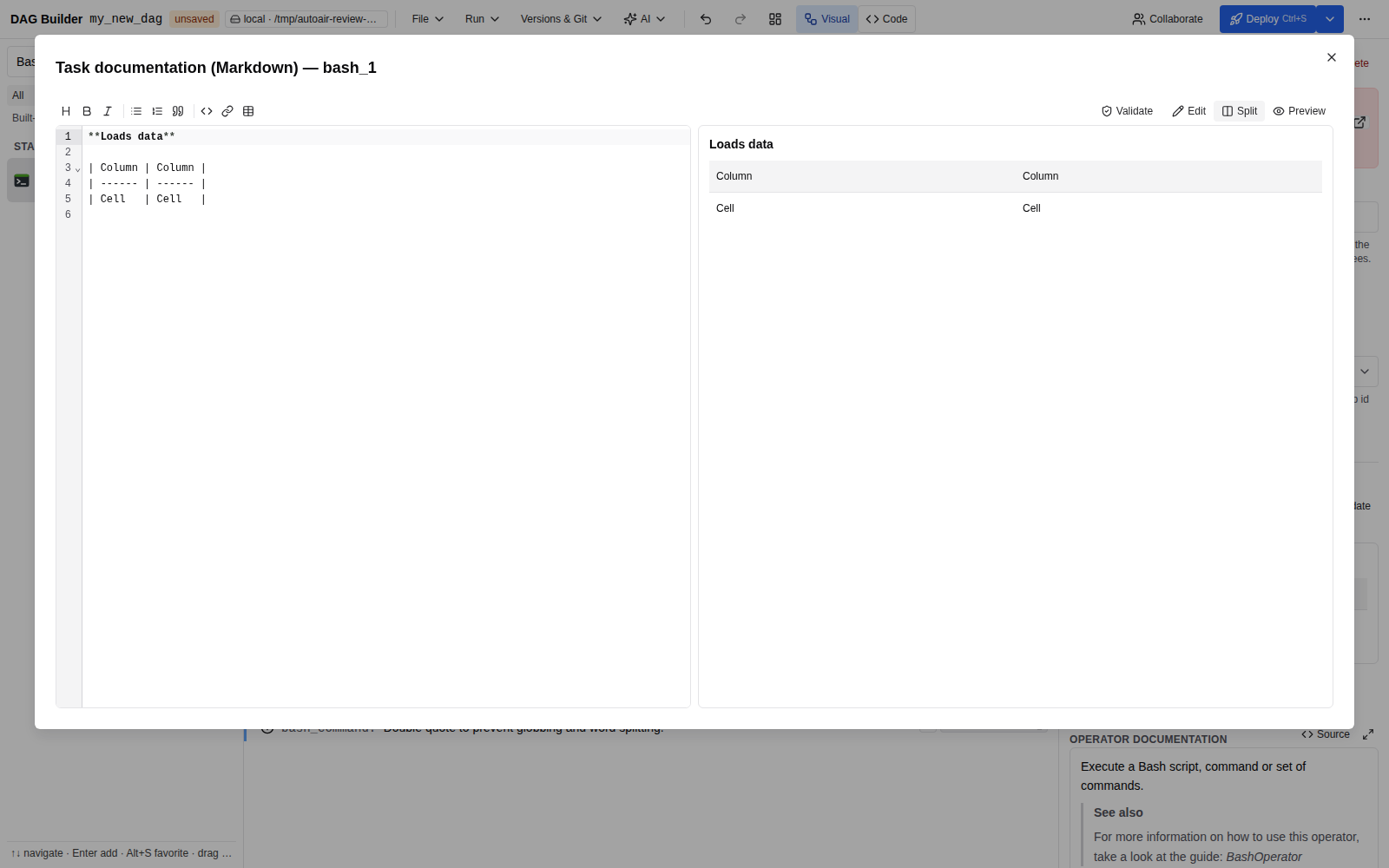
Documentation fields use the Markdown editor: the DAG Docs tab (doc_md), the task Docs tab (doc_md), sticky-note text in the note inspector, the markdown description of DAG params, and the body of human-in-the-loop requests.
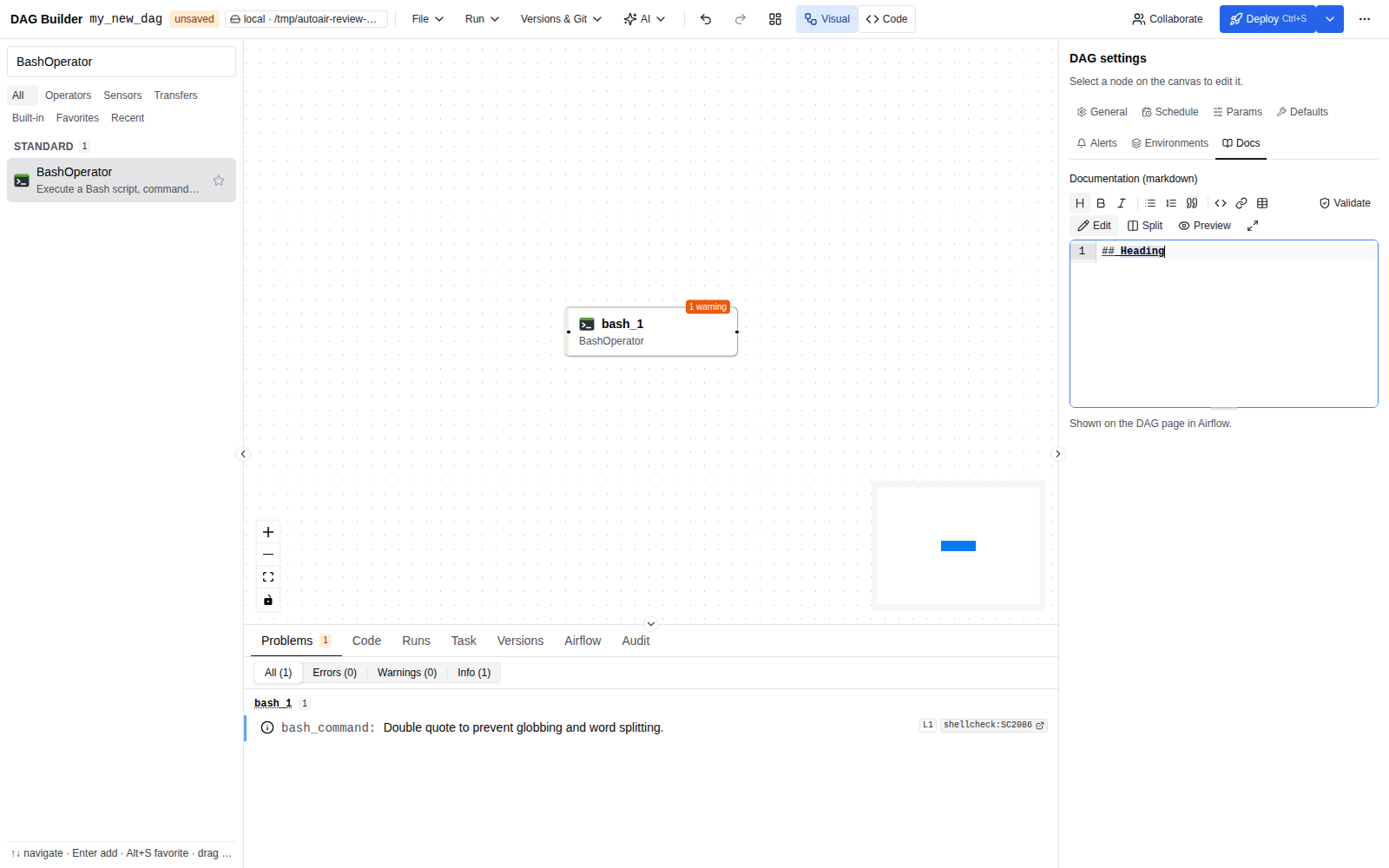
- Toolbar: heading, Bold (Ctrl+B / ⌘B), Italic (Ctrl+I / ⌘I), bulleted list, numbered list, quote, code, Link (Ctrl+K / ⌘K) and table. While you type in the editor these keys format text instead of toggling panels or opening the command palette.
- Views: Edit, Split (editor and live preview side by side) and Preview. The preview renders GitHub-flavoured Markdown.
- Full screen opens the editor in a large dialog, in Split view by default.
/snippets: type/to insert blocks at the start of a line (/h1,/h2,/h3,/list,/numbered,/todo,/python,/sql,/bash,/code,/table,/quote,/note,/warning,/hr, and/dagdoc, an outline with Owner, Inputs, Outputs and On failure sections) or inline anywhere (/link,/image,/bold,/italic,/inline-code).- Enter continues lists and quotes.
- Validate in the toolbar reports unclosed code fences.
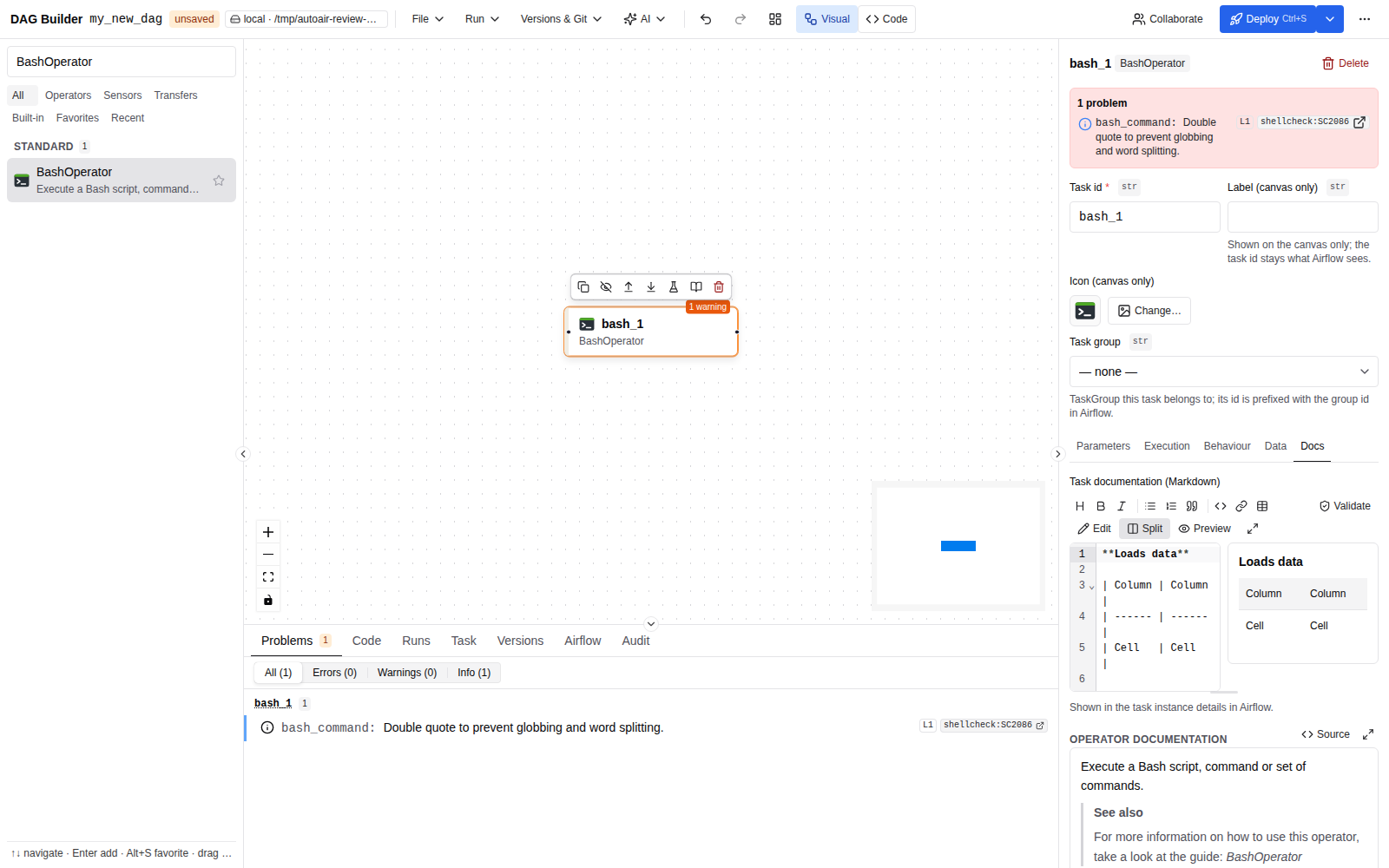
The DAG doc_md is shown on the DAG page in Airflow; a task's doc_md is shown in the task instance details. Notes with Include in DAG docs are appended to the DAG's doc_md when the code is generated.